

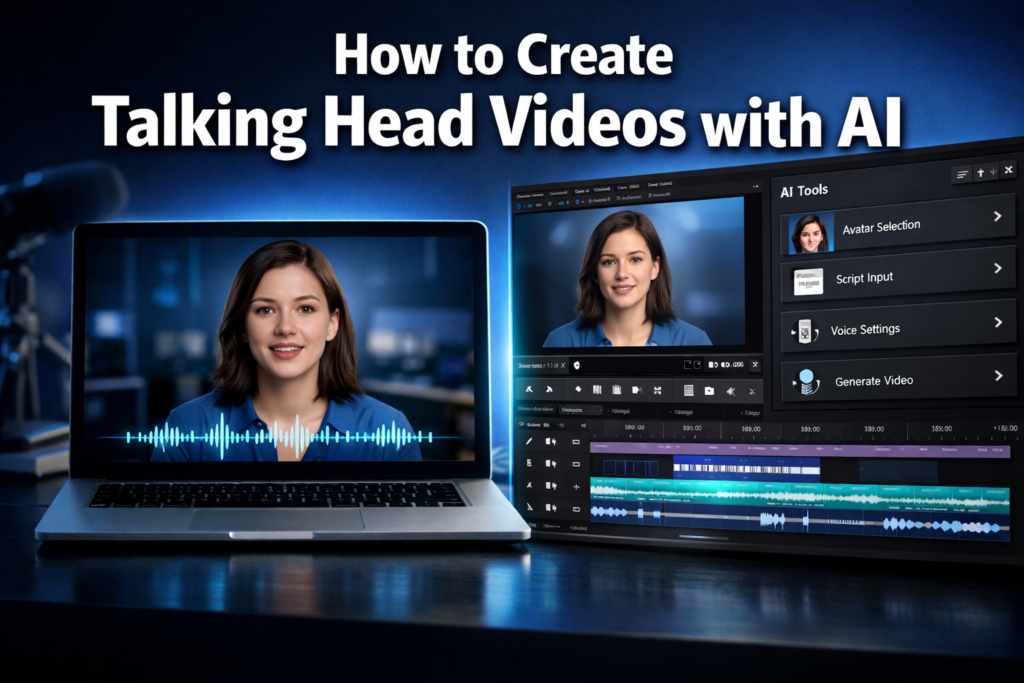
Quick Answer: To create talking head videos with AI, you upload a photo or short video clip of a person, provide a script or audio file, and let an AI tool generate a lip-synced, animated video of that person speaking. The whole process takes minutes and requires no camera, studio, or acting skills.
Key Takeaways
- AI talking head videos use a static image or short clip plus a script to produce a realistic speaking avatar.
- Most tools follow a 4-step workflow: choose an avatar, write a script, generate audio, then render the video.
- Quality varies significantly between platforms — photorealistic tools cost more but look far more convincing.
- Lip-sync accuracy is the most critical quality factor; look for tools that use neural rendering, not just overlay techniques.
- Free tiers exist but typically add watermarks or cap resolution; budget $20–$80/month for professional output.
- Best use cases include corporate training, marketing explainers, multilingual content, and social media clips.
- Ethical use matters: always disclose AI-generated video in contexts where audiences expect a real person.
What Exactly Is a Talking Head Video, and Why Use AI to Make One?
A talking head video is any footage where a person faces the camera and speaks directly to the audience. Think product explainers, online course lessons, news-style updates, or social media commentary clips. Traditionally, producing one required a camera, lighting, a decent microphone, and a willing presenter.
AI changes that equation entirely. With the right tool, you can generate a convincing talking head video from a single photo and a typed script — no filming required. This matters most for:
- Teams without on-camera talent who still need a human face in their content
- Multilingual content where you need the same presenter speaking different languages
- High-volume production where recording dozens of videos manually isn’t practical
- Privacy-conscious creators who want a digital avatar instead of their real face
How to Create Talking Head Videos with AI: The Core Workflow
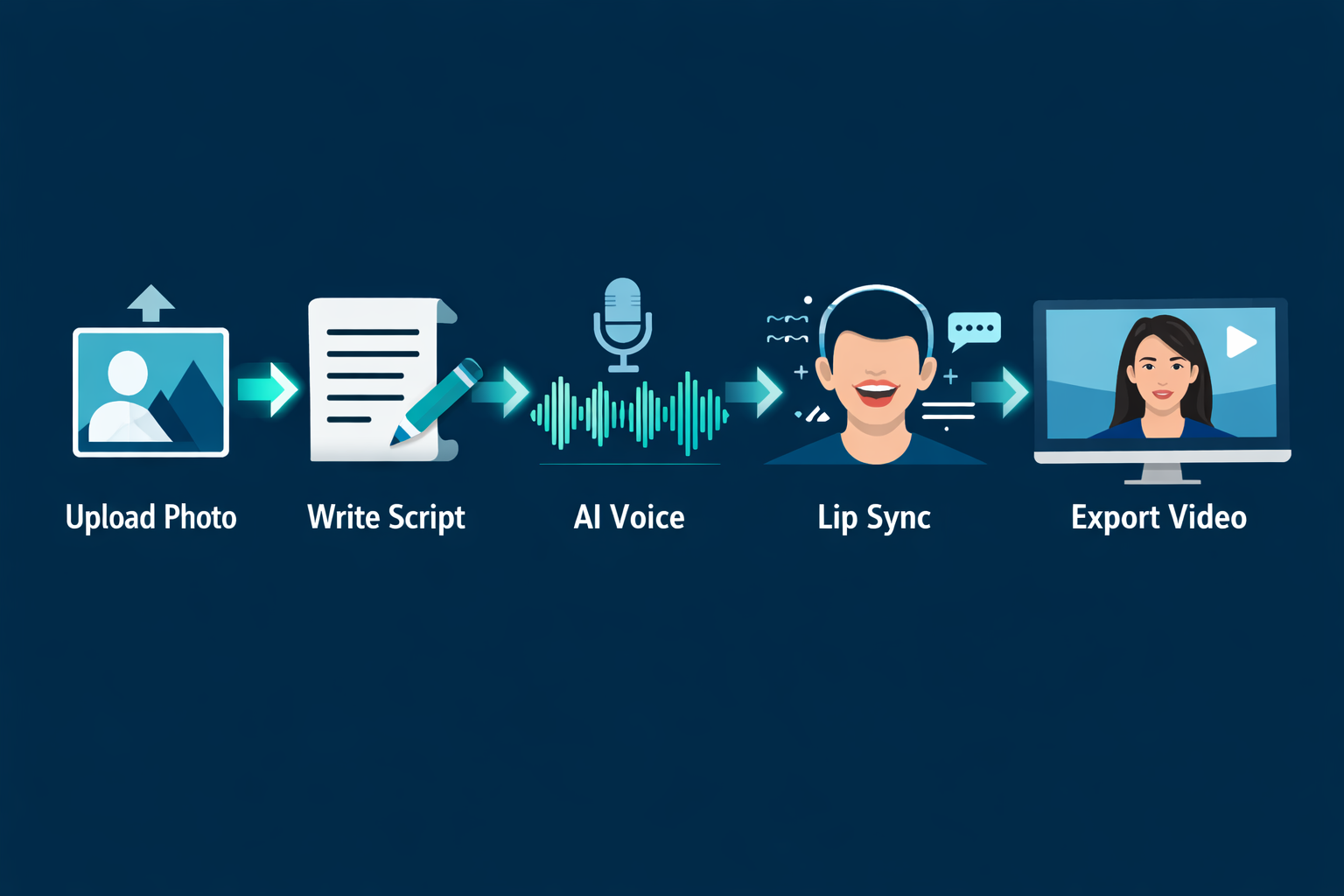
The process for creating AI talking head videos breaks down into four clear steps, regardless of which platform you use.
Step 1: Choose or upload your avatar
Most platforms offer a library of pre-built AI avatars. Alternatively, you can upload a photo or short video clip of a real person (with their consent) to create a custom avatar.
Step 2: Write or paste your script
Type the text you want the avatar to speak. Some platforms also let you upload a pre-recorded audio file and sync it to the avatar’s lip movements.
Step 3: Select a voice
Pick from built-in AI voices or clone a specific voice if the platform supports it. Voice quality varies widely — test a sample before committing.
Step 4: Generate and export
The AI renders the video, syncing mouth movements, facial expressions, and sometimes head gestures to the audio. Export in your preferred format (MP4 is standard).
💡 Pro tip: Write your script at a natural speaking pace — roughly 130–150 words per minute. Scripts that are too dense often cause the AI to rush delivery, which sounds unnatural.
Which AI Tools Are Best for Creating Talking Head Videos?
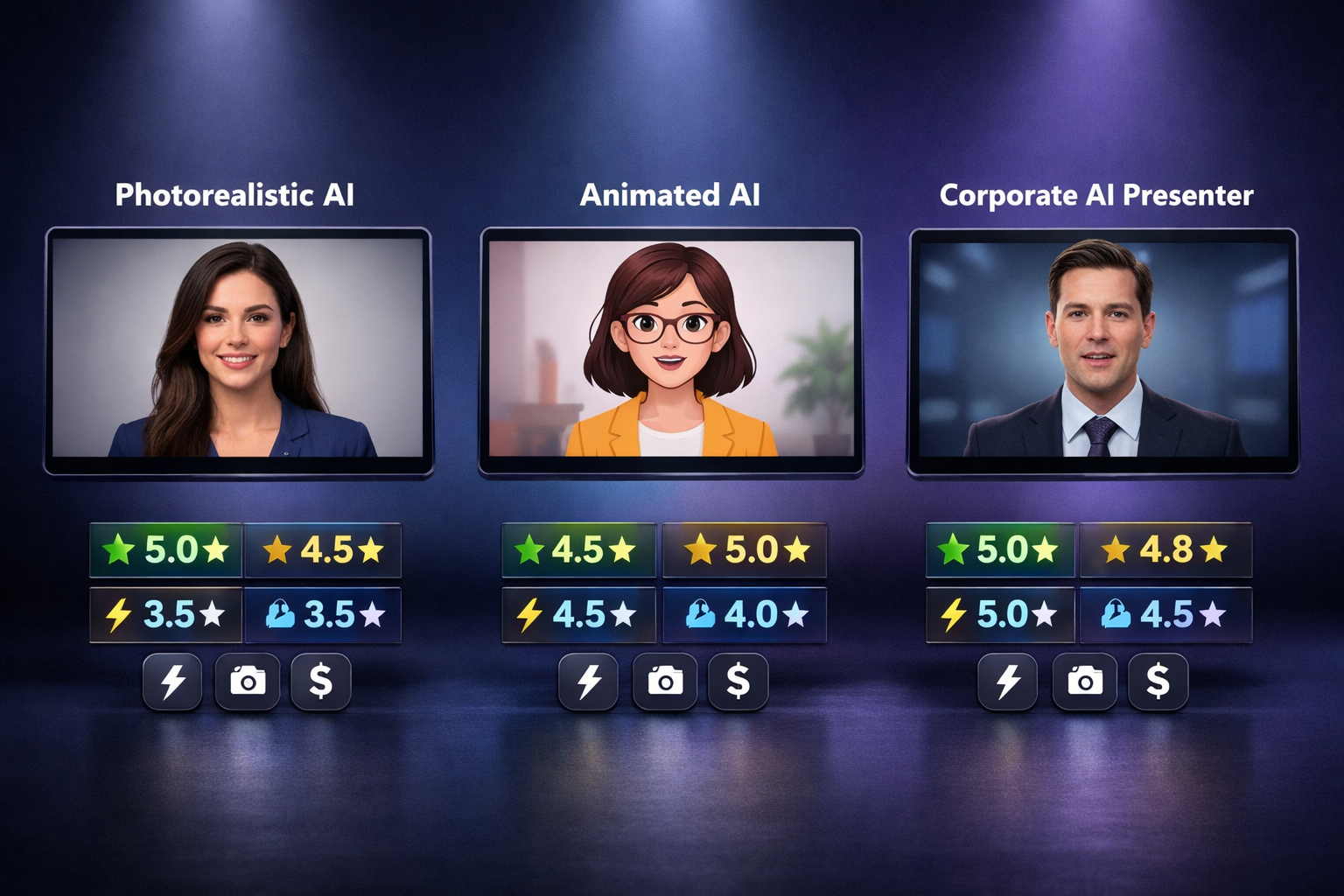
Several strong platforms exist in 2026, each with different strengths. Here’s a practical comparison:
| Tool | Best For | Lip-Sync Quality | Starting Price |
|---|---|---|---|
| DeepBrain AI (Float) | Photorealistic avatars | ⭐⭐⭐⭐⭐ | ~$30/mo |
| Synthesia | Corporate training | ⭐⭐⭐⭐ | ~$29/mo |
| HeyGen | Marketing & social | ⭐⭐⭐⭐ | ~$29/mo |
| D-ID | Quick prototypes | ⭐⭐⭐ | Free tier available |
| RAD-NeRF | Real-time generation | ⭐⭐⭐⭐⭐ | Research/self-hosted |
For audio-driven portrait animation specifically, the Float by DeepBrain AI review covers one of the most photorealistic options currently available. If real-time generation interests you, the RAD-NeRF review breaks down how neural radiance fields push lip-sync quality further than standard 2D methods.
Choose a tool based on this logic:
- Choose Synthesia or HeyGen if you need polished corporate content with minimal setup.
- Choose DeepBrain AI / Float if photorealism is the top priority.
- Choose D-ID if you’re experimenting on a budget and watermarks are acceptable.
- Choose RAD-NeRF if you’re technically comfortable and need real-time or self-hosted output.
What Makes Lip-Sync Quality Good (or Bad)?
Lip-sync quality is the single biggest factor separating professional-looking AI talking head videos from obvious fakes. Poor lip-sync creates an “uncanny valley” effect that immediately signals to viewers that something is off.
What to look for:
- Phoneme accuracy: The avatar’s mouth should match individual sounds, not just approximate word shapes.
- Natural mouth transitions: Smooth blending between phonemes, not choppy frame-by-frame switching.
- Facial micro-expressions: Blinking, slight head movement, and subtle expression changes make the video feel alive.
- Audio-visual alignment: Even a 50ms delay between audio and mouth movement is noticeable.
Tools like Diff2Lip and LatentSync represent newer approaches to lip-sync that use diffusion models for more natural mouth movement — worth exploring if standard tools aren’t hitting the quality bar you need.
How to Create Talking Head Videos with AI for Different Use Cases
The workflow stays the same, but small adjustments improve results depending on your goal.
For marketing videos:
Keep scripts under 90 seconds. Use a confident, direct tone. Choose avatars that match your brand’s demographic. Add captions — most platforms include auto-caption tools.
For e-learning and training:
Break content into 3–5 minute segments. Use a neutral, clear-speaking avatar voice. Pair the talking head with on-screen slides or annotations for better retention.
For multilingual content:
Select a platform with voice cloning or multilingual voice libraries. HeyGen and Synthesia both support 40+ languages. Test the output with a native speaker before publishing — AI accents in some languages still need work.
For social media:
Vertical format (9:16) matters. Export at 1080p minimum. Some creators use tools like FacelessReels to automate the full pipeline from script to published clip.
What Are the Common Mistakes to Avoid?
Even with good tools, these mistakes consistently produce weak results:
- Using a low-quality source image. Blurry or poorly lit photos produce blurry, poorly rendered avatars. Use a clear, front-facing image with even lighting.
- Writing scripts that sound like text, not speech. Read your script aloud before submitting. If it sounds awkward spoken, it’ll sound worse from an AI voice.
- Ignoring background and framing. A realistic avatar in front of a generic stock background still looks cheap. Match the background to your brand or use a custom virtual set.
- Skipping the preview. Always render a short preview clip before generating the full video. Catching issues early saves time and credits.
- Over-relying on default settings. Adjust speaking speed, pitch, and pause placement. Default settings are a starting point, not a final product.
How Much Does It Cost to Create AI Talking Head Videos?
Costs in 2026 range from free (with limitations) to enterprise pricing above $200/month. Here’s a realistic breakdown:
- Free tier: Watermarked output, capped at 720p, limited minutes per month. Good for testing.
- Starter plans ($20–$35/month): 10–30 minutes of video per month, HD output, basic avatar library.
- Professional plans ($50–$100/month): Unlimited or high-cap minutes, custom avatar creation, priority rendering.
- Enterprise ($200+/month): API access, white-labeling, dedicated support, custom voice cloning.
For teams producing more than 10 videos per month, a mid-tier plan usually pays for itself quickly compared to the cost of traditional video production.
FAQ: Creating Talking Head Videos with AI
Can I use my own face as an AI avatar?
Yes. Most platforms let you upload a photo or short video clip to create a custom avatar. Some require a consent verification step for ethical and legal compliance.
How realistic do AI talking head videos look in 2026?
High-end tools produce output that’s difficult to distinguish from real footage at normal viewing distances. Lower-tier tools still show visible artifacts around the mouth and eyes.
Do I need video editing skills to use these tools?
No. Most AI talking head platforms are designed for non-editors. You type a script, click generate, and download the result.
Can AI talking head videos be detected?
Detection tools exist, but they’re imperfect. Platforms like YouTube and LinkedIn are building detection systems. Ethical disclosure is the right approach regardless of detection capability.
What file formats can I export?
MP4 is the standard across all major platforms. Some also support MOV or WebM. Resolution options typically range from 720p to 4K depending on your plan.
Is voice cloning included in most tools?
Not by default. Voice cloning is usually a premium feature. Basic plans use pre-built AI voices; cloning your own voice typically requires a professional or enterprise plan.
How long does rendering take?
A 60-second video typically renders in 1–5 minutes on cloud-based platforms. Longer videos or high-resolution outputs take proportionally longer.
Are there free AI talking head video tools?
D-ID and a few others offer free tiers. Tools like Wula AI also offer no-login generation for quick tests, though with limitations on quality and length.
Can I add subtitles automatically?
Most platforms include auto-captioning. Quality varies — always review captions before publishing, especially for technical or industry-specific vocabulary.
What’s the ethical rule of thumb for using AI talking head videos?
If your audience reasonably expects a real human, disclose that the video is AI-generated. This applies to news content, testimonials, and any context where authenticity is assumed.
Conclusion: Your Next Steps
Learning how to create talking head videos with AI is genuinely accessible in 2026 — the tools have matured, the pricing is reasonable, and the output quality is good enough for most professional use cases.
Here’s what to do next:
- Pick one tool from the comparison table above and sign up for a free trial.
- Write a 60-second script for a real piece of content you need — don’t just test with dummy text.
- Generate a preview clip and evaluate lip-sync quality, voice naturalness, and background.
- Adjust and iterate — tweak speaking speed, voice selection, and avatar choice before committing to a full render.
- Review the output critically before publishing. Watch it back at normal speed and ask: does this look credible?
For deeper dives into specific tools, the GeneFace review covers 3D talking face generation, and the Hallo2 review explores portrait animation that goes beyond basic lip-sync. Both are worth reading if you want to push quality further.
The barrier to producing professional-looking video content has dropped significantly. The question now isn’t whether you can create talking head videos with AI — it’s whether you’re using the right tool for your specific goal.
References
- Synthesia. (2023). AI Video Generation Platform Documentation. https://www.synthesia.io
- HeyGen. (2024). HeyGen Platform Features and Pricing. https://www.heygen.com
- D-ID. (2023). Creative Reality Studio Overview. https://www.d-id.com
- Zhang, Y., et al. (2022). RAD-NeRF: Real-Time Neural Talking Portrait Synthesis. arXiv. https://arxiv.org/abs/2211.12368
- Wiles, O., et al. (2018). X2Face: A network for controlling face generation using images, audio, and pose codes. ECCV. https://www.robots.ox.ac.uk/~vgg/research/unsup_learn_watch_faces/x2face.html