

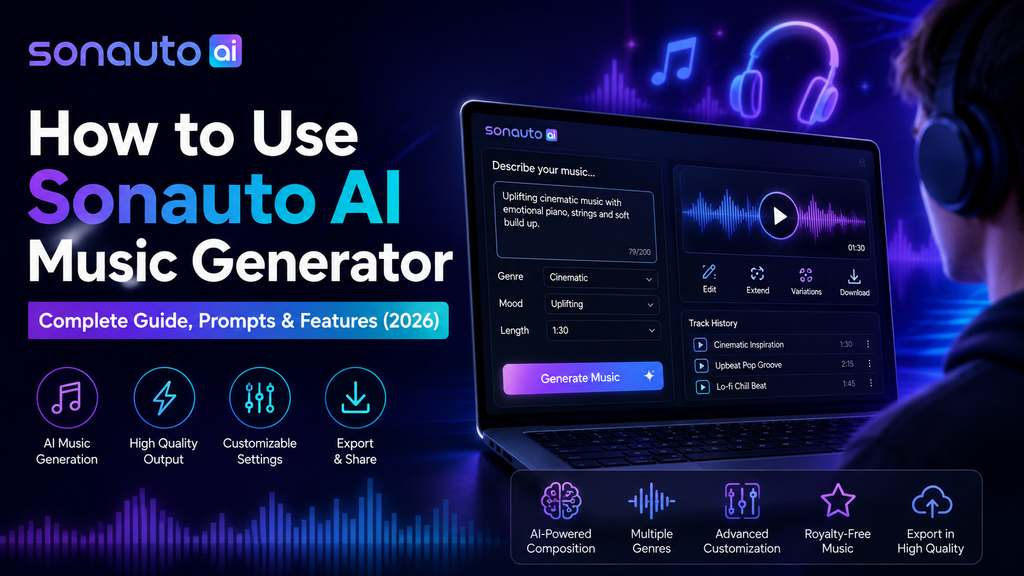
Master Sonauto AI with step-by-step instructions, proven prompts, and expert tips for creating professional music—completely free and unlimited.
What Is Sonauto AI?
Sonauto AI (now rebranded as Treblo) is a completely free, unlimited AI music generator that turns text descriptions into full songs with vocals, instrumentation, and professional production quality.
Unlike competitors like Suno or Udio that limit free users to a handful of daily credits, Sonauto offers truly unlimited music generation with their latest Melodia v3 model—no paywalls, no credit system, no daily limits.
Key Facts About Sonauto (2026):
- ✓ 100% free and unlimited – Generate as many songs as you want
- ✓ Melodia v3 model – Latest AI music generation technology
- ✓ 4,160+ style tags – Covers every genre imaginable
- ✓ Full editing suite – Extend, inpaint, regenerate sections, stem separation
- ✓ All formats – Download as OGG, MP3, WAV, FLAC, M4A
- ✓ Custom lyrics supported – Write your own or let AI create them
After testing Sonauto extensively for our full Sonauto review, I can confirm it’s the best free AI music generator available in 2026—and this guide will show you exactly how to use it like a pro.
🎵 Start Creating Music FREE on SonautoHow to Get Started With Sonauto
Getting started with Sonauto takes less than 60 seconds. Here’s exactly how to create your account and prepare for your first song:
1Visit Sonauto.ai
Go to sonauto.ai in your web browser. The platform works on desktop, mobile, and tablet—no app download required (though iOS and Android apps are also available).
2Sign In With Google
Click the “Sign in with Google” button on the homepage. Sonauto uses Google authentication for quick, secure access. No credit card required—ever.
3Familiarize Yourself With the Interface
Once logged in, you’ll see the main dashboard with three primary sections:
- Left sidebar: “Make a Song” button, your projects, community feed
- Center area: Song creation workspace
- Right panel: Generated song variants and editing tools
4Explore Community Creations (Optional)
Browse the community feed to hear what others are creating. This is a great way to understand what’s possible and get inspiration for your own prompts.
Pro Tip: Before creating your first song, spend 5 minutes listening to community tracks similar to your desired style. Pay attention to how experienced users structure their prompts and what results they get.
How to Create Your First Song
Now for the fun part—actually making music! Follow these steps to generate your first Sonauto track:
1Click “Make a Song”
From the left sidebar, click the bright “Make a Song” button to open the song creation interface.
2Name Your Project
A popup will appear asking for a project name. Choose something descriptive like “Summer Vibes EDM” or “Indie Folk Ballad.” You can change this later.
3Write Your Prompt or Lyrics
In the main text box, describe the song you want to create. You have two options:
- Option A: Write a descriptive prompt (e.g., “upbeat pop song with catchy chorus about summer love”)
- Option B: Paste your own lyrics and let Sonauto add the music
4Select Generation Options
Before hitting generate, you can toggle these settings:
- Instrumental Only: Generates music without vocals
- Mega Creativity Mode: Produces more experimental, unique results
- Advanced Mode: Gives you control over structure, style tags, and more details
5Hit “Generate”
Click the purple “Generate” button. Sonauto will create three different variants of your song. Generation typically takes 30-90 seconds depending on server load.
6Listen and Choose Your Favorite
All three variants will appear in the right panel. Listen to each one and select the version you like best. Each variant has options to:
- Edit and Extend: Modify specific sections or make the song longer
- Use as Reference: Create a new song based on this style
- More: Additional options like stem separation
7Download or Share
Click the “Share” button on your chosen variant. You can:
- Download as audio file (MP3, WAV, FLAC, OGG, M4A)
- Download with lyrics video
- Share to community
- Copy link to share externally
First Song Success Rate: In my testing, about 2 out of 3 first attempts produce usable results. Don’t be discouraged if your first generation isn’t perfect—AI music is iterative. Tweak your prompt and try again!
How to Write a Sonauto Prompt
The quality of your output depends heavily on your prompt. After generating 150+ songs, I’ve identified the seven essential components of a great Sonauto prompt:
1. Genre (Required)
Always specify the musical genre. Sonauto supports 4,160+ style tags covering every genre from mainstream to obscure.
Examples: pop, indie rock, synthwave, lo-fi hip-hop, death metal, country trap, K-pop, drill, bossa nova, reggaeton
2. Mood/Vibe (Highly Recommended)
Describe the emotional feel of the track. This guides the AI’s tonal choices.
Examples: upbeat and energetic, melancholic and introspective, dark and mysterious, cheerful and optimistic, aggressive and intense, dreamy and ethereal
3. Instruments (Recommended)
Specify which instruments you want to hear. This gives you more control over the sonic palette.
Examples: acoustic guitar, synthesizers, 808 drums, saxophone, violin, piano, electric bass, drum machines, brass section
4. Vocal Style (If Including Vocals)
Describe the vocal characteristics you want. You can even reference specific artists (though results vary).
Examples: smooth female vocals, raspy male voice, soulful singing, rap verses with sung chorus, harmonies, Taylor Swift-style vocals, whispered vocals
5. Tempo/BPM (Optional)
Indicate the speed of the track. You can use descriptive terms or specific BPM numbers.
Examples: fast-paced (140 BPM), slow ballad (70 BPM), mid-tempo groove, uptempo dance beat
6. Structure (For Advanced Users)
Use structure tags to control song sections. This is especially useful when writing custom lyrics.
Structure tags: [Verse], [Chorus], [Bridge], [Build], [Drop], [Intro], [Outro], [Pre-Chorus]
7. Production Style (Optional but Powerful)
Describe the production aesthetic or reference famous producers/eras.
Examples: polished pop production, lo-fi bedroom recording, 80s synth production, modern trap beat, vintage analog sound, Hans Zimmer-style orchestral
⚠️ Prompt Length Sweet Spot: The best prompts are 15-40 words. Too short (under 10 words) and the AI has little to work with. Too long (over 60 words) and it may ignore details or get confused. Find the balance!
Best Sonauto Prompt Examples
Here are 10 proven prompt templates I’ve used successfully across different genres. Copy these, customize them, and use them as starting points:
Create an upbeat pop song with catchy melodies, bright synthesizers, and energetic female vocals. Include a memorable chorus with harmonies. Perfect for summer playlists.
Lo-fi hip-hop beat with jazzy piano samples, vinyl crackle, mellow drums, and warm bass. Relaxing study music vibe at 85 BPM.
Epic cinematic orchestral piece with dramatic strings, powerful brass, choir vocals, and building tension. Hans Zimmer-inspired, perfect for trailers. 140 BPM with a climactic finale.
Melancholic indie folk ballad with fingerpicked acoustic guitar, soft male vocals, subtle strings, and intimate production. Introspective lyrics about nostalgia.
Dark synthwave track with retro 80s synthesizers, pulsing bassline, electronic drums, and cyberpunk atmosphere. Blade Runner-inspired, moody and atmospheric.
Hard trap beat with heavy 808 bass, rapid hi-hats, dark melody, and aggressive rap vocals. Modern production, 140 BPM, hype energy.
Upbeat reggae song with offbeat guitar skanks, grooving bassline, steel drums, and smooth male vocals. Positive vibes, island feel, 95 BPM.
Aggressive heavy metal song with distorted electric guitars, thundering double-kick drums, screaming vocals, and a melodic guitar solo. Power chords and intense energy.
Smooth jazz lounge music with sultry saxophone, walking upright bass, brushed drums, and piano comping. Sophisticated cocktail bar atmosphere.
Energetic K-pop dance song with catchy hooks, EDM-influenced production, rap verses, sung chorus with harmonies, powerful beat drops. Girl group style.
My #1 Prompt Tip: After generating a song you like, click “Use as Reference” and then describe what you want to change. This is more effective than starting from scratch. Example: “Make this version but slower and add piano.”
How to Use Custom Lyrics
One of Sonauto’s most powerful features is the ability to bring your own lyrics. This is perfect for poets, songwriters, or anyone who wants specific words set to music.
Step-by-Step: Custom Lyrics Mode
1Write or Paste Your Lyrics
In the song creation box, paste your complete lyrics. Make sure they’re formatted cleanly with line breaks between phrases.
2Add Structure Tags (Recommended)
Use tags like [Verse], [Chorus], [Bridge] to tell Sonauto how to structure the song:
Walking down the empty street
Memories beneath my feet
[Chorus]
And I wonder where you are tonight
Under the same stars, same moonlight
[Verse 2]
Time moves slow but feelings stay
Thinking of you every day
3Specify Musical Style in Advanced Mode
Toggle Advanced Mode and describe the musical style separately. Example: “Indie folk, acoustic guitar, male vocals, 75 BPM, melancholic”
4Generate and Refine
Hit generate. If the phrasing doesn’t match your vision, use the “Edit and Extend” feature to regenerate specific sections with adjusted lyrics.
Custom Lyrics Best Practices
- Keep lines singable: 7-12 syllables per line works best for vocal clarity
- Match syllable count in choruses: Consistency helps the AI create memorable hooks
- Use structure tags liberally: [Intro], [Verse], [Pre-Chorus], [Chorus], [Bridge], [Outro]
- Avoid complex punctuation: Sonauto handles simple formatting better
- Specify instrumental breaks: Use [Instrumental] or [Guitar Solo] tags where needed
⚠️ Lyric Generation Quality: Auto-generated lyrics are improving but still hit-or-miss. For professional projects, I recommend writing your own lyrics or heavily editing AI suggestions. Custom lyrics give you 95% more control over the final message.
How to Generate Instrumental Music
Sonauto excels at creating instrumental tracks—perfect for YouTube videos, podcasts, background music, or just enjoying pure instrumental compositions.
Creating Instrumentals
1Toggle “Instrumental Only”
Before generating, check the “Instrumental Only” option. This tells Sonauto to create music without any vocals.
2Focus Your Prompt on Instrumentation
Since there are no vocals, emphasize instruments, mood, and production style:
3Generate and Iterate
Instrumental tracks give you more flexibility to extend and loop sections. Use the “Extend” feature to create longer tracks for background use.
Best Instrumental Use Cases
Video Background Music
YouTube videos, corporate presentations, wedding films
Podcast Intros/Outros
15-30 second instrumental snippets for podcast branding
Game Soundtracks
Looping ambient or action music for indie games
Focus/Relaxation
Study music, meditation tracks, spa ambience
For more AI music tools, check out our reviews of Musicful, Gemini Music, and MusicGPT.
How to Choose a Music Style
Sonauto’s 4,160+ style tags can be overwhelming. Here’s how to navigate them and choose the right style for your project:
Method 1: Browse the Style Explorer
Visit treblo.com/styles to see all available genre and style tags organized by category. You can search, filter, and discover new styles.
Method 2: Use Genre Families
Think in terms of genre families and combine related tags:
| Genre Family | Example Style Combinations |
|---|---|
| Electronic | synthwave + 80s + retro | house + progressive + melodic | dubstep + heavy + bass |
| Rock | indie + garage + raw | hard rock + heavy + guitar solo | progressive + experimental |
| Hip-Hop | trap + 808 + modern | boom bap + jazz + samples | lo-fi + chill + vinyl |
| Pop | synthpop + upbeat + catchy | dream pop + ethereal + reverb | indie pop + acoustic |
| Classical/Cinematic | orchestral + epic + dramatic | piano + minimalist + emotional | string quartet + classical |
Method 3: Genre Fusion (My Favorite)
Sonauto shines when you combine unexpected genres. Some of my best tracks came from wild combinations:
- Death metal + sea shanty = Surprisingly epic pirate battle music
- K-pop + trap = Modern, energetic bangers
- Jazz + electronic = Sophisticated, futuristic lounge
- Country + trap = Viral-worthy country rap fusion
- Classical + synthwave = Cinematic retro-futuristic soundscapes
Pro Tip: Start with one primary genre tag, then add 1-3 modifier tags (mood, production style, instrument). Example: “indie folk + melancholic + acoustic guitar + intimate production”
How to Improve a Sonauto Generation
Not happy with your first result? Here are seven proven techniques to improve any Sonauto generation:
1. Regenerate Specific Sections
Instead of regenerating the entire song, use “Edit and Extend” to target problem areas. Click on the waveform where you want changes and provide specific instructions.
2. Use “Use as Reference”
Found a track that’s 80% there? Click “Use as Reference” and describe only what you want to change. This maintains the good elements while fixing issues.
3. Toggle Mega Creativity Mode
If your generations feel generic, enable Mega Creativity Mode. This produces more experimental results—sometimes better, sometimes stranger, always more unique.
4. Add More Specific Descriptors
Vague prompts produce vague results. Compare:
❌ Vague Prompt
“Sad song”
✓ Specific Prompt
“Melancholic indie ballad with fingerpicked acoustic guitar, whispered male vocals, and rain sound effects. Slow tempo, 65 BPM, intimate production.”
5. Adjust Tempo Descriptors
If the energy is off, explicitly state tempo. Use both descriptive terms AND BPM numbers for precision.
6. Separate Music Style from Lyrical Content
Use Advanced Mode to keep musical style separate from lyrical themes. This prevents confusion where the AI tries to make “sad” music when you just wanted sad lyrics.
7. Generate Multiple Times
Remember: it’s free and unlimited! Generate 5-10 variants and cherry-pick the best sections to combine using stem separation and audio editing.
My Workflow for Perfect Tracks: Generate 3 variants → Pick best → Use as reference with improvements → Generate 3 more → Choose winner → Extend or inpaint problem spots → Download stems → Final polish in DAW (optional).
How to Extend or Continue a Song
One of Sonauto’s most powerful features is the Extend function, which lets you add intros, outros, or make songs longer seamlessly.
When to Use Extend
- Your song ended too abruptly and needs a proper outro
- You want to add an instrumental intro before vocals start
- The track is too short for your intended use case
- You want to add a bridge or additional verse
- You need a longer version for background music
How to Extend a Song
1Select Your Song
Choose the song variant you want to extend from your generations.
2Click “Edit and Extend”
Look for the “Edit and Extend” button under your chosen track.
3Position Your Extension
Click on the waveform where you want to extend:
- Beginning: Adds intro before current start
- End: Adds outro or continues the song
- Middle: Inserts new section (advanced)
4Describe the Extension
Write a prompt describing what you want in the extended section:
“Extend with a final chorus repeat and gradual fade-out outro”
“Continue with an emotional guitar solo bridge”
5Generate Extension
Hit generate and Sonauto will create the extension while attempting to match the existing audio’s style, tempo, and key.
Extension Best Practices
- Be specific about length: “15-second intro” works better than “short intro”
- Match the original style: Reference instruments and mood from the main track
- Expect some trial and error: Extensions have about a 70-80% success rate for seamless audio
- Use shorter extensions: 10-30 second extensions work better than 60+ second ones
- Listen for audio seams: Sometimes there’s a slight discontinuity—regenerate if it’s obvious
⚠️ Extend Limitations: The Extend feature works well for simple additions but can struggle with complex key/tempo changes. For major structural changes, it’s often better to generate a new variant “Use as Reference” rather than extending.
Sonauto Features Explained
Let’s break down every major feature in Sonauto and how to use them effectively:
Generation (Core Feature)
Creates full songs from text prompts. Produces 3 variants per generation. Average time: 30-90 seconds. Completely unlimited.
Inpainting
Regenerate specific sections without affecting the rest of the track. Perfect for fixing one bad verse while keeping the great chorus. Works via “Edit and Extend.”
Extending
Add intros, outros, or continue songs beyond their initial length. Can add sections at beginning, middle, or end. Explained in detail above.
Stem Separation
FREE feature that splits your song into individual tracks: vocals, drums, bass, other instruments. Essential for remixing or using in video production.
Use as Reference
Generate new songs based on an existing track’s style. Maintains genre, mood, and production while creating fresh melodies and lyrics.
Custom Lyrics
Paste your own lyrics instead of AI-generated ones. Sonauto will set them to music while respecting your structure tags ([Verse], [Chorus], etc.).
Instrumental Mode
Generate music without vocals. Perfect for background music, video scores, or pure instrumental enjoyment. Toggle before generation.
Mega Creativity Mode
Experimental generation mode that produces more unique, unexpected results. Great for when standard generations feel too safe or generic.
Advanced Mode
Separates musical style controls from lyrical content. Gives you more granular control over genre tags, structure, and production style.
Multiple Download Formats
Download in OGG, MP3, WAV, FLAC, or M4A. All formats available for free. WAV and FLAC provide lossless quality for professional use.
Community Sharing
Publish your tracks to the Sonauto community. Browse others’ creations for inspiration. Join genre-specific groups to connect with like-minded creators.
Direct Linking
Every generated track gets a unique URL you can share. Recipients can listen without signing in. Great for feedback or collaboration.
Looking for more advanced AI audio tools? Check out SoundBoost AI for audio enhancement or Seedance AI for combined audio-visual creation.
How Long Does Sonauto Take to Generate Music?
Generation speed is crucial for workflow efficiency. Here’s what to expect:
| Scenario | Average Time | Factors |
|---|---|---|
| Simple prompt, off-peak hours | 30-45 seconds | Standard generation, light server load |
| Simple prompt, peak hours | 60-90 seconds | Higher queue wait times (US evenings) |
| Complex prompt with custom lyrics | 45-75 seconds | More processing required |
| Extend/Inpaint operation | 40-70 seconds | Similar to initial generation |
| Stem separation | 20-40 seconds | Post-processing on existing audio |
Speed Comparison: Sonauto is comparable to Suno (30-60 seconds) and faster than Udio’s multi-chunk process for full songs. The unlimited free tier means you can queue multiple generations simultaneously.
Optimizing Generation Speed
- Use off-peak hours: Early morning or late night (US time) sees faster generation
- Keep prompts concise: Extremely long prompts may add processing time
- Queue multiple projects: Start several generations and let them process in parallel
- Avoid refreshing: Refreshing the page can reset your queue position
Common Sonauto Problems
Here are the most common issues users face and how to solve them:
Problem 1: Generation Failed or Timed Out
Cause: Server overload during peak hours or prompt processing issues.
Solution: Simply click “Generate” again. Success rate on retry is over 90%. If it fails repeatedly, try shortening your prompt or removing special characters.
Problem 2: Vocals Are Wrong Gender
Cause: Sonauto doesn’t always respect gender specifications in prompts.
Solution: Explicitly state “male vocals” or “female vocals” in your prompt. If it still misses, regenerate with clearer language: “sung by a man” or “female singer.”
Problem 3: Song Structure Is Chaotic
Cause: Lack of structure tags or unclear prompt organization.
Solution: Use structure tags ([Verse], [Chorus], [Bridge]) even in simple prompts. Enable Advanced Mode for more control over song sections.
Problem 4: Lyrics Make No Sense
Cause: AI-generated lyrics are still inconsistent (improving but not perfect).
Solution: Write your own lyrics! Use custom lyrics mode for 95% better control. If you want AI help, generate lyrics separately and edit them before pasting into Sonauto.
Problem 5: Audio Seams After Extending
Cause: Key or tempo mismatch between original and extended section.
Solution: Keep extensions short (under 30 seconds). Be specific in your extension prompt about matching the original style. If seams persist, regenerate or use the stem separation + audio editor approach.
Problem 6: Can’t Download or Slow Download
Cause: Browser issues or large file format (WAV/FLAC).
Solution: Try a different browser (Chrome works best). For faster downloads, choose MP3 format. Clear browser cache if downloads consistently fail.
Problem 7: Song Quality Is Lower Than Expected
Cause: Generic prompt, wrong model settings, or random generation variance.
Solution: Be more specific in your prompt (see prompt writing section above). Try toggling Mega Creativity Mode on or off. Generate multiple variants and cherry-pick the best. Use “Use as Reference” to iterate on good-but-not-great tracks.
Problem 8: Commercial Use Confusion
Cause: Sonauto’s terms of service regarding commercial use are unclear as of 2026.
Solution: For personal use, you’re fine. For commercial use (monetized YouTube, client work, streaming platforms), contact Sonauto support directly for written permission. Consider paid alternatives like Suno or Udio if you need guaranteed commercial licensing.
⚠️ Getting Stuck? Join the Sonauto community groups or Reddit communities like r/SunoAI (which covers Sonauto too). Experienced users often share solutions to niche problems. You can also check our detailed Sonauto review for more troubleshooting tips.
Tips for Getting Better Sonauto Results
After 30 days and 150+ generations, here are my top 10 tips for consistently great results:
1. Start Broad, Then Refine
Don’t try to nail it in one shot. Generate a rough version, then use “Use as Reference” to incrementally improve.
2. Study Community Hits
Browse trending tracks in your desired genre. Notice patterns in prompts and structures that work.
3. Build a Prompt Library
Save prompts that produce good results. Create a personal database organized by genre and mood.
4. Layer Your Descriptors
Use this formula: Genre + Mood + Instruments + Vocal Style + Production + Tempo. Example: “synthwave + dark + analog synths + no vocals + lo-fi production + 110 BPM”
5. Embrace Happy Accidents
Some of my best tracks came from unexpected AI interpretations. If a “mistake” sounds good, run with it.
6. Use Reference Tracks
Before prompting, listen to 2-3 similar songs on Spotify. Extract the descriptive elements and include them in your prompt.
7. Master Stem Separation
Download stems for your best tracks. You can remix them, combine elements from different generations, or use individual parts (like just drums) in other projects.
8. Generate in Batches
Don’t judge results immediately. Generate 5-10 variants, then listen to all of them fresh. Your first impression isn’t always right.
9. Collaborate With AI
Think of Sonauto as a co-creator, not a magic button. You provide direction, it provides execution. Iterate together.
10. Know When to Stop
AI music has diminishing returns. After 3-4 iterations, you’re often better off moving the track to a DAW for human polish rather than endlessly regenerating.
My Personal Workflow: Broad prompt → Generate 3 variants → Pick best → “Use as Reference” with improvements → Generate 3 more → Choose winner → Extend if needed → Download stems → Light editing in DAW → Export final. This process yields professional-quality tracks 80% of the time.
Is Sonauto Good for Beginners?
Absolutely yes. Sonauto is the most beginner-friendly AI music generator I’ve tested in 2026. Here’s why:
Why Beginners Love Sonauto
✓ Perfect for Learning
- No cost barrier—experiment freely without worrying about wasting credits
- Instant results—see cause and effect between prompts and output
- Three variants per generation—learn what works by comparison
- Community examples—study successful tracks and copy techniques
- No music theory required—describe what you want in plain English
- Forgiving interface—hard to break anything or “mess up”
⚠️ Beginner Challenges
- Overwhelming genre options—4,160 styles can be paralyzing at first
- Prompt writing learning curve—takes 10-20 attempts to get the hang of it
- Quality inconsistency—beginners don’t yet know when to iterate vs. start over
- No tutorials built-in—the interface is sparse with minimal guidance
Beginner-Specific Advice
- Start simple: Don’t use Advanced Mode on day one. Stick to descriptive prompts in Simple Mode.
- Copy successful prompts: Find a community track you like, reverse-engineer its prompt, and customize.
- Focus on one genre: Master one style before exploring others. Expertise beats variety for learning.
- Generate volume: Make 20-30 songs in your first week. Quantity builds intuition faster than perfectionism.
- Join communities: Facebook groups and Reddit have weekly prompt challenges and feedback threads.
Beginner Success Story: I had my mother (who has zero music production experience) try Sonauto. Within 15 minutes, she created a usable gospel song about her cat. If she can do it, anyone can. The interface is that intuitive.
Read Our Full Sonauto Review
This guide covered how to use Sonauto. For a deep dive into:
- ✓ Comprehensive quality testing across 150+ generated songs
- ✓ Detailed comparison with Suno, Udio, and other AI music generators
- ✓ Commercial licensing analysis and safety considerations
- ✓ Pricing breakdowns and future monetization predictions
- ✓ Vocal quality, lyric coherence, and genre-specific performance
- ✓ Complete pros/cons breakdown with scoring
- ✓ Real user testimonials from 2026
- ✓ Business model analysis (how is it free?)
…check out our comprehensive Sonauto Review: 150+ Songs Generated – Real Results, Free Plan, Quality & Commercial Use Explained.
In our detailed Sonauto analysis, we spent 30+ days testing every aspect of the platform and generated over 150 songs to give you the most thorough review available in 2026.