


Quick Answer: Most commercial AI video generators require an internet connection because they run on cloud servers. However, a small but growing number of open-source and locally installed tools can generate video offline, provided your computer has a powerful enough GPU. The short answer is: yes, it’s possible, but it’s not the norm, and the setup is more demanding than most users expect.
Key Takeaways
- The vast majority of popular AI video tools (Runway, Pika, Sora) are cloud-only and cannot work offline.
- Offline AI video generation is possible using open-source models like AnimateDiff, CogVideo, or Wan2.1 run locally.
- Local generation requires a modern GPU with at least 8–16 GB of VRAM for usable results.
- Offline tools trade convenience for privacy and independence from subscription fees.
- Internet-dependent tools are generally faster, easier to use, and more feature-rich in 2026.
- Some hybrid tools cache models locally but still need internet for licensing checks.
- Offline generation is best suited for developers, privacy-conscious creators, and users in low-connectivity environments.
- Setup complexity is the biggest barrier for non-technical users.
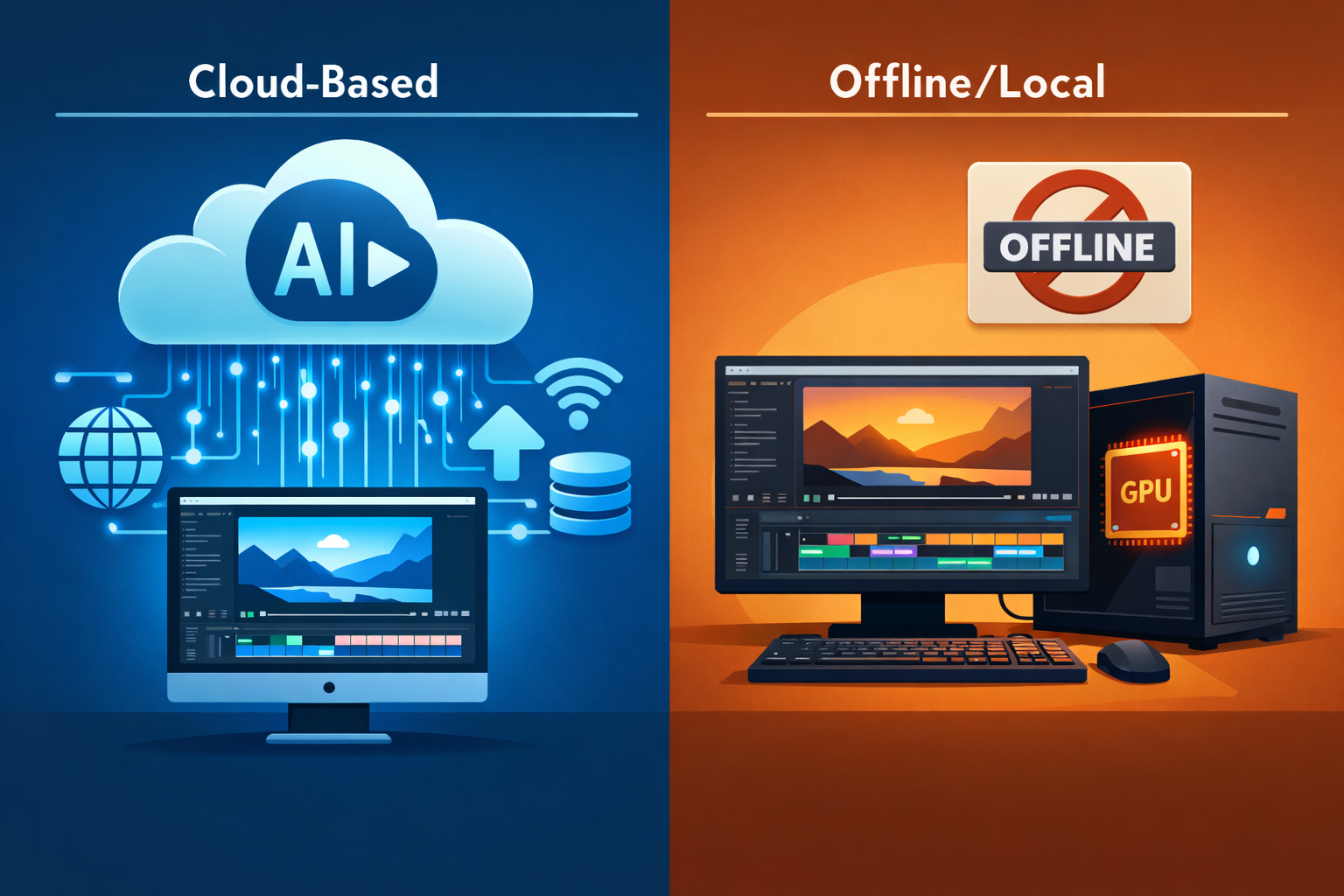
What Does “Offline AI Video Generation” Actually Mean?
Offline AI video generation means the AI model runs entirely on your local hardware, with no data sent to or processed by a remote server. No internet connection is needed once the model is downloaded.
This is different from tools that simply have a desktop app. Many “desktop” AI video apps still stream processing to the cloud. True offline generation means the neural network weights live on your machine and your CPU or GPU does all the computation.
Key distinction:
- Cloud-based tool with desktop app = still needs internet (e.g., most SaaS video platforms)
- Locally installed open-source model = genuinely offline after initial download
Can AI Video Generators Work Offline Without Internet? The Real Answer
Yes, but with significant caveats. The answer depends entirely on which tool you’re using and what hardware you have.
Here’s the honest breakdown:
| Tool Type | Works Offline? | Notes |
|---|---|---|
| Runway, Pika, Kling | ❌ No | Cloud-only, no local option |
| Sora (OpenAI) | ❌ No | API/web only |
| AnimateDiff (local) | ✅ Yes | Requires strong GPU, technical setup |
| CogVideoX (local) | ✅ Yes | Open-source, runs on high-end hardware |
| Wan2.1 (local) | ✅ Yes | One of the best open-source options in 2026 |
| Some hybrid tools | ⚠️ Partial | Need internet for license checks |
For most everyday users, the tools they already know and pay for are cloud-dependent. If you want offline capability, you’re looking at open-source alternatives that require a manual setup process.
Why Do Most AI Video Tools Require the Internet?
Most commercial AI video generators are cloud-dependent for three practical reasons.
1. Model size. Modern video generation models range from 5 GB to over 30 GB. Hosting and running these on cloud infrastructure is far more cost-effective for companies than asking users to download massive files.
2. Compute requirements. Generating even a 5-second video clip at decent quality can require hundreds of GPU-hours on consumer hardware. Cloud providers offer dedicated GPU clusters that complete the same task in seconds.
3. Business model. Subscription-based tools like Pika AI or Vid AI monetize through usage. Offline access would undermine that model entirely.
“The cloud isn’t just a convenience for AI video tools — it’s often a structural requirement given current model sizes and compute demands.”
Which AI Video Generators Can Work Offline Without Internet?
A handful of open-source projects genuinely support offline video generation in 2026. These are the most viable options:
AnimateDiff
- Generates short animated clips from text prompts
- Runs via ComfyUI or Automatic1111
- Minimum: RTX 3080 (10 GB VRAM) for acceptable results
CogVideoX
- Open-source model from Zhipu AI
- Supports text-to-video and image-to-video
- Requires 16–24 GB VRAM for full quality
Wan2.1
- One of the strongest open-source video models available in 2026
- Supports multiple resolutions and longer clips
- Can run on 16 GB VRAM with quantization tricks
Deforum (Stable Diffusion)
- Creates psychedelic, stylized video from image sequences
- Lower hardware requirements than newer models
- Limited to specific visual styles
Choose local/offline if:
- You handle sensitive footage and can’t risk cloud uploads
- You’re in a location with unreliable or no internet
- You want to avoid ongoing subscription costs after initial setup
- You’re a developer building a custom pipeline
Stick with cloud tools if:
- You need high-quality output quickly
- You don’t have a powerful GPU
- You want a polished, no-setup experience
What Hardware Do You Need for Offline AI Video Generation?
Offline video generation is hardware-intensive. This is the single biggest barrier for most users.
Minimum viable setup (2026 estimates):
- GPU: NVIDIA RTX 3080 or better (10 GB+ VRAM)
- RAM: 32 GB system RAM
- Storage: 50–100 GB free (for model weights)
- OS: Windows 10/11 or Linux (macOS support is limited but improving via Metal)
Recommended for smooth results:
- GPU: RTX 4090 or RTX 5080 (24 GB VRAM)
- RAM: 64 GB
- Storage: NVMe SSD for faster model loading
AMD GPUs can work with ROCm on Linux, but support is patchier than NVIDIA’s CUDA ecosystem. Apple Silicon (M3/M4) can run some models via MLX or MPS backends, but generation speed is slower than a high-end NVIDIA card.
Common mistake: Trying to run a 14B-parameter video model on a GPU with 8 GB VRAM. The model won’t load, or it’ll crash mid-generation. Always check the model’s VRAM requirements before downloading.
How Do You Set Up an Offline AI Video Generator?
Setting up a local AI video tool takes more steps than signing up for a cloud service, but it’s manageable if you’re comfortable with basic command-line tools.
General setup process (AnimateDiff or CogVideoX as examples):
- Install Python 3.10+ and a package manager (pip or conda)
- Install CUDA (for NVIDIA GPUs) matching your driver version
- Clone the model repository from GitHub
- Download model weights (usually from Hugging Face — this requires internet once)
- Install dependencies via
pip install -r requirements.txt - Launch the local web UI (ComfyUI or Gradio interface)
- Run generation — all processing happens locally from this point
After step 4, you can disconnect from the internet entirely. Some models include a license check on first run, but most open-source models have no such restriction.
Edge case: A few tools marketed as “offline” still phone home for telemetry or license validation. Check the project’s documentation or source code if privacy is a concern.
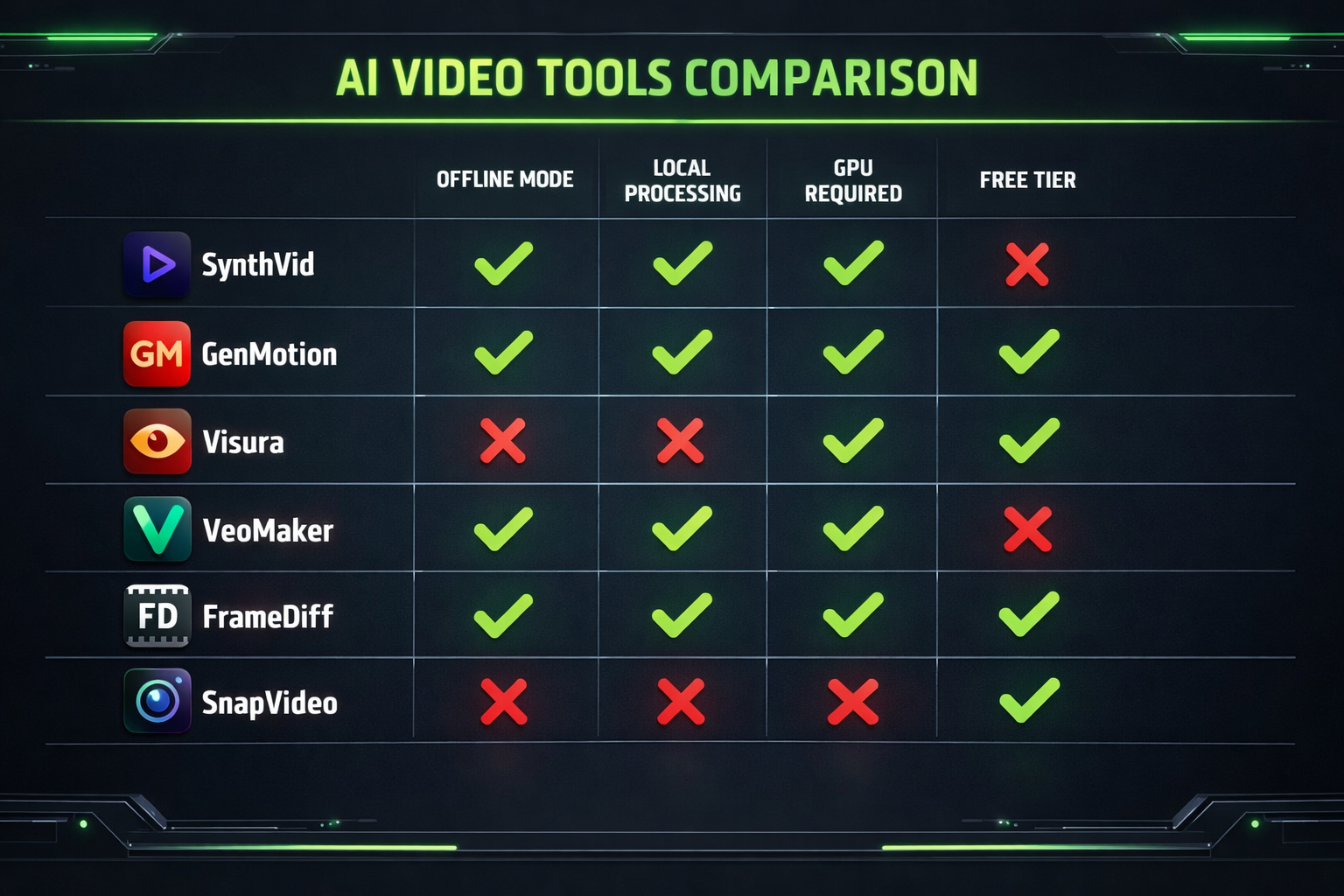
How Does Offline Video Quality Compare to Cloud-Based Tools?
In 2026, the quality gap between top open-source local models and commercial cloud tools has narrowed, but it hasn’t closed.
Where offline models hold their own:
- Short clips (2–6 seconds) at 720p
- Stylized or artistic outputs
- Image-to-video animation
Where cloud tools still lead:
- Longer clips (10+ seconds) with temporal consistency
- Photorealistic human faces and motion
- Audio-synced video (tools like Float by DeepBrain AI or LatentSync are cloud-based for good reason)
- One-click workflows with no technical knowledge required
For faceless content or stylized video, tools like Keyvello and FacelessReels offer polished cloud-based pipelines that would take significant effort to replicate locally.
Are There Privacy Benefits to Offline AI Video Generation?
Yes, and this is one of the strongest arguments for going local.
When you use a cloud-based AI video tool, your prompts, uploaded images, and generated content may be stored on the provider’s servers. Depending on the platform’s terms of service, that content could be used for model training or reviewed by staff.
With a locally run model, nothing leaves your machine. This matters for:
- Corporate users handling proprietary footage or unreleased products
- Legal or medical content with confidentiality requirements
- Creators who don’t want their style or prompts analyzed by a third party
This is the same reason some users prefer locally run LLMs for sensitive writing tasks. The privacy argument for offline AI tools is real and growing stronger as data regulations tighten globally in 2026.
FAQ: Offline AI Video Generation
Q: Can I use Runway or Pika offline? No. Both are cloud-only platforms. There is no offline or local version available as of 2026.
Q: Does downloading a model to my computer mean I can use it offline? Usually yes, once the model weights are downloaded and dependencies are installed. Some models still require an internet connection for license validation on first run.
Q: What’s the easiest offline AI video tool for beginners? ComfyUI with AnimateDiff is the most widely documented option. It has a visual node interface that’s more approachable than raw command-line tools, though it still requires initial setup.
Q: How long does offline video generation take? On an RTX 4090, a 4-second clip at 512×512 resolution takes roughly 2–5 minutes depending on the model and settings. On older or mid-range GPUs, expect 15–30 minutes or more.
Q: Can I run offline AI video generation on a laptop? Only if the laptop has a dedicated NVIDIA GPU with 8+ GB VRAM (e.g., RTX 4080 laptop GPU). Integrated graphics or low-VRAM cards won’t work for most current models.
Q: Is offline AI video generation free? The open-source models themselves are free. You pay only for hardware (which you may already own) and electricity. There are no subscription fees.
Q: Do offline models support audio or voiceover generation? Most video-only models don’t include audio. You’d need a separate local TTS or music tool. For integrated audio-video workflows, cloud tools are currently more capable.
Q: What about Mac users? Apple Silicon Macs (M2/M3/M4) can run some models via the MLX framework or PyTorch MPS backend. Results are slower than a high-end NVIDIA GPU but improving steadily.
Q: Are there legal issues with running open-source AI video models locally? Most open-source models use permissive licenses (Apache 2.0, MIT, or similar). Always check the specific model’s license, especially for commercial use.
Q: Will offline AI video tools improve significantly in 2026? Yes. The open-source community is moving fast. Models like Wan2.1 already rival early commercial tools in quality, and hardware efficiency is improving with each new model release.
Conclusion: Should You Go Offline for AI Video?
The answer to “can AI video generators work offline without internet?” is yes, but it’s not the right choice for everyone.
Go offline if you have a powerful GPU, value privacy, want to avoid subscription costs long-term, or work in environments with limited connectivity. The open-source ecosystem in 2026 is genuinely capable for short-form and stylized content.
Stick with cloud tools if you need the fastest, highest-quality output with minimal setup. Platforms reviewed in our AI video and media tools category offer polished experiences that local tools can’t yet match for ease of use.
Actionable next steps:
- Check your GPU’s VRAM — if it’s under 8 GB, cloud tools are your best option for now.
- If you have 10+ GB VRAM, try ComfyUI with AnimateDiff as a low-risk starting point.
- For cloud-based video creation, compare options like Wula AI (no-login access) or DomoAI for different use cases.
- If privacy is the primary concern, prioritize local models and verify that no telemetry is included in the tool you choose.
The offline vs. online choice isn’t permanent. Many creators use both: cloud tools for quick, polished outputs and local models for experimental or private work.
References
- Hugging Face Model Hub — model documentation and VRAM requirements for CogVideoX and Wan2.1 (2024–2025). https://huggingface.co
- AnimateDiff GitHub Repository — setup documentation and hardware requirements (2023). https://github.com/guoyww/AnimateDiff
- ComfyUI GitHub Repository — node-based local inference UI documentation (2023). https://github.com/comfyanonymous/ComfyUI