

Quick Answer: A self-hosted cloud lets you run your own file storage, calendar, contacts, and collaboration tools on hardware you control — instead of paying monthly fees to Google, Dropbox, or Microsoft. You get full data ownership, no subscription lock-in, and privacy by default. The main trade-off is that setup takes a few hours and ongoing maintenance falls on you.
Key Takeaways
- Self-hosting your cloud means running software like Nextcloud or OpenCloud on your own hardware or a rented VPS.
- You keep 100% ownership of your data — no third-party scanning, no surprise price hikes, no account suspensions.
- Hardware costs typically start around $150–$300 for a capable home server (Raspberry Pi 5, used mini PC, or a NAS device).
- Docker makes installation dramatically easier — most apps deploy in under 30 minutes.
- You’ll need basic Linux command-line comfort, a domain name, and a reverse proxy (like Nginx or Caddy) for secure remote access.
- Regular backups and SSL certificates are non-negotiable for a production-ready setup.
- This guide is best suited for home users, small businesses, and privacy-conscious individuals who want control without enterprise budgets.
What Is a Self-Hosted Cloud and Who Should Use This Self-Hosted Cloud Guide?
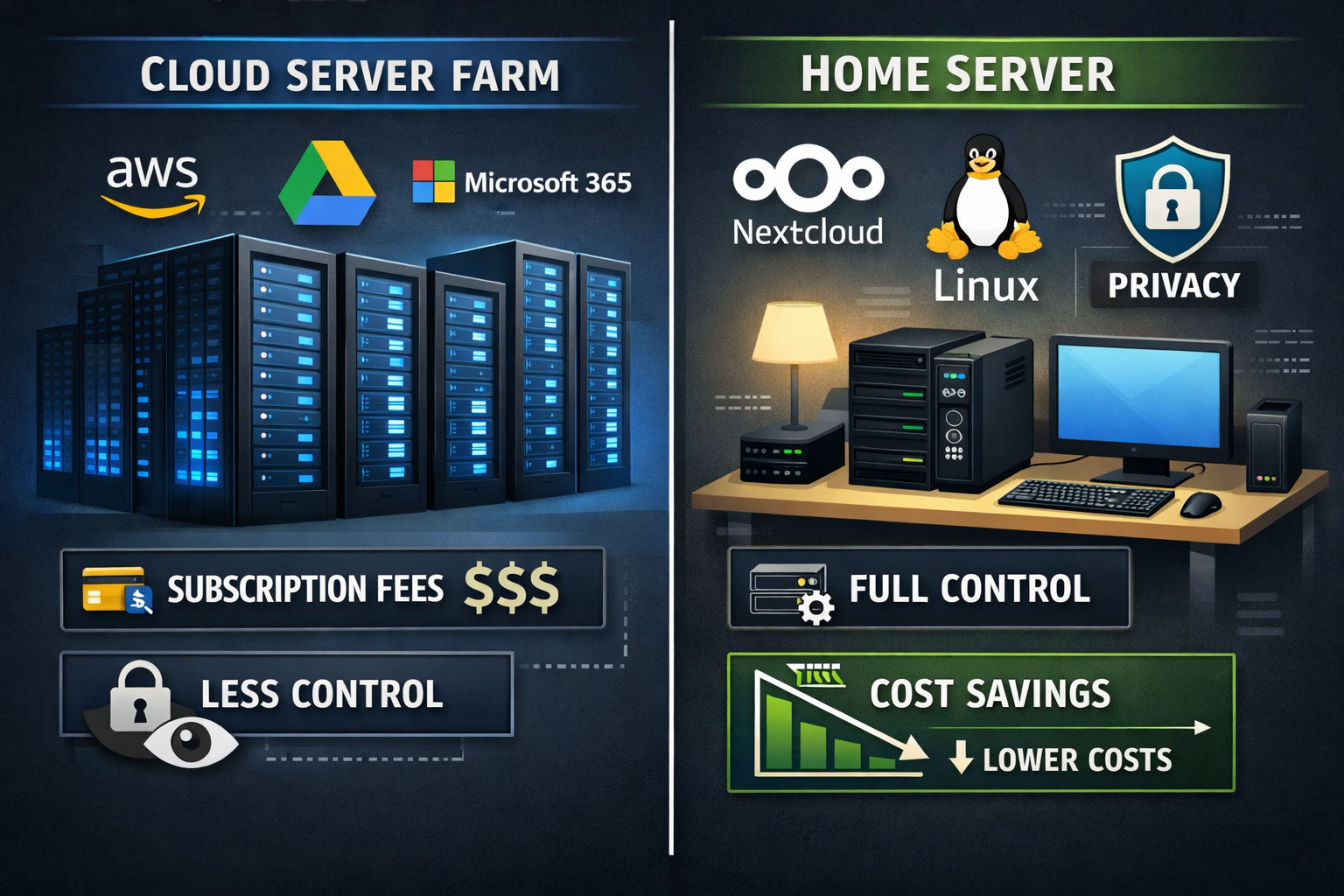
A self-hosted cloud is a private cloud storage and productivity system you run on your own hardware or a server you rent and fully control. Unlike Google Drive or iCloud, no company has access to your files, and you set the rules.
This guide is for you if:
- You’re paying $10–$30/month for cloud storage and want to cut that cost
- You handle sensitive files (legal, medical, financial) and need true privacy
- You’re a developer or home lab enthusiast who wants hands-on control
- You run a small team and need shared storage without enterprise pricing
This guide is NOT the right fit if:
- You need zero-maintenance, set-and-forget storage with 24/7 enterprise support
- You’re uncomfortable with a Linux terminal
- Downtime during your own maintenance window would be a serious business problem
Why Self-Hosting Beats Commercial Cloud (and Where It Doesn’t)
Self-hosting wins on cost, privacy, and customization. It loses on convenience and reliability guarantees.
Here’s an honest comparison:
| Factor | Self-Hosted Cloud | Commercial Cloud (e.g., Google One) |
|---|---|---|
| Monthly Cost | $0–$5 Low | $3–$30+ Higher |
| Data Ownership | 100% Yours | Provider Terms Apply |
| Privacy | Full Control | Data Analysis / Tracking |
| Setup Time | 2–8 Hours Moderate | Minutes |
| Uptime Guarantee | Depends on Setup | 99.9%+ SLA |
| Storage Limits | Hardware-Based | Plan-Based |
| Customization | Unlimited | Limited |
The honest trade-off: If your home server goes down during a power outage, your files are temporarily inaccessible. Commercial providers have redundant data centers for a reason. Plan for this with a UPS (uninterruptible power supply) and off-site backups.
Choosing the Right Hardware for Your Self-Hosted Cloud
The right hardware depends on how many users you’re supporting and what you’re storing.
For 1–3 users (home use):
- Raspberry Pi 5 (8GB RAM) — affordable, low power draw (~5W), sufficient for file sync and basic apps
- Used mini PC (Intel N100 or similar) — more processing power, better for media transcoding, typically $80–$150 refurbished
For 4–15 users (small team or family):
- Synology or QNAP NAS — purpose-built, includes RAID support, runs Docker apps natively
- Repurposed desktop PC with 8–16GB RAM — flexible and powerful
For remote access without home hardware:
- A VPS (Virtual Private Server) from providers like Hetzner, DigitalOcean, or Vultr — typically $5–$20/month for a capable instance
💡 Quick rule: Choose a NAS if you prioritize simplicity and data redundancy. Choose a mini PC or VPS if you want more software flexibility and Docker support.
Storage planning: Budget roughly 1.5x your current cloud storage usage to account for backups and growth. If you’re currently using 200GB on Google Drive, start with a 500GB drive minimum.
Picking the Right Software: The Core of Your Self-Hosted Cloud Guide
The software you choose defines what your cloud can do. Here are the most practical options in 2026:
File storage and sync:
- Nextcloud — the most popular choice, feature-rich, large community, supports files, calendar, contacts, video calls, and hundreds of plugins
- OpenCloud — a faster, more modern fork of ownCloud; I’ve tested it and found it noticeably snappier than Nextcloud for large file libraries (see our in-depth OpenCloud vs Nextcloud comparison)
Note-taking and personal knowledge:
- Blinko — a self-hosted note app with a clean interface and strong privacy focus; worth considering if you’re replacing Notion or Obsidian Sync (read the Blinko review for full details)
Communication and team chat:
- SpacebarChat — a self-hosted Discord alternative that runs on your own server; good for small teams who want private voice and text channels (see the SpacebarChat review)
Recommended starting stack for most users:
- Nextcloud or OpenCloud (files, calendar, contacts)
- Blinko or Joplin (notes)
- Vaultwarden (password manager, Bitwarden-compatible)
- Immich (photo backup, Google Photos alternative)
Step-by-Step Setup: Your Self-Hosted Cloud Guide in Action
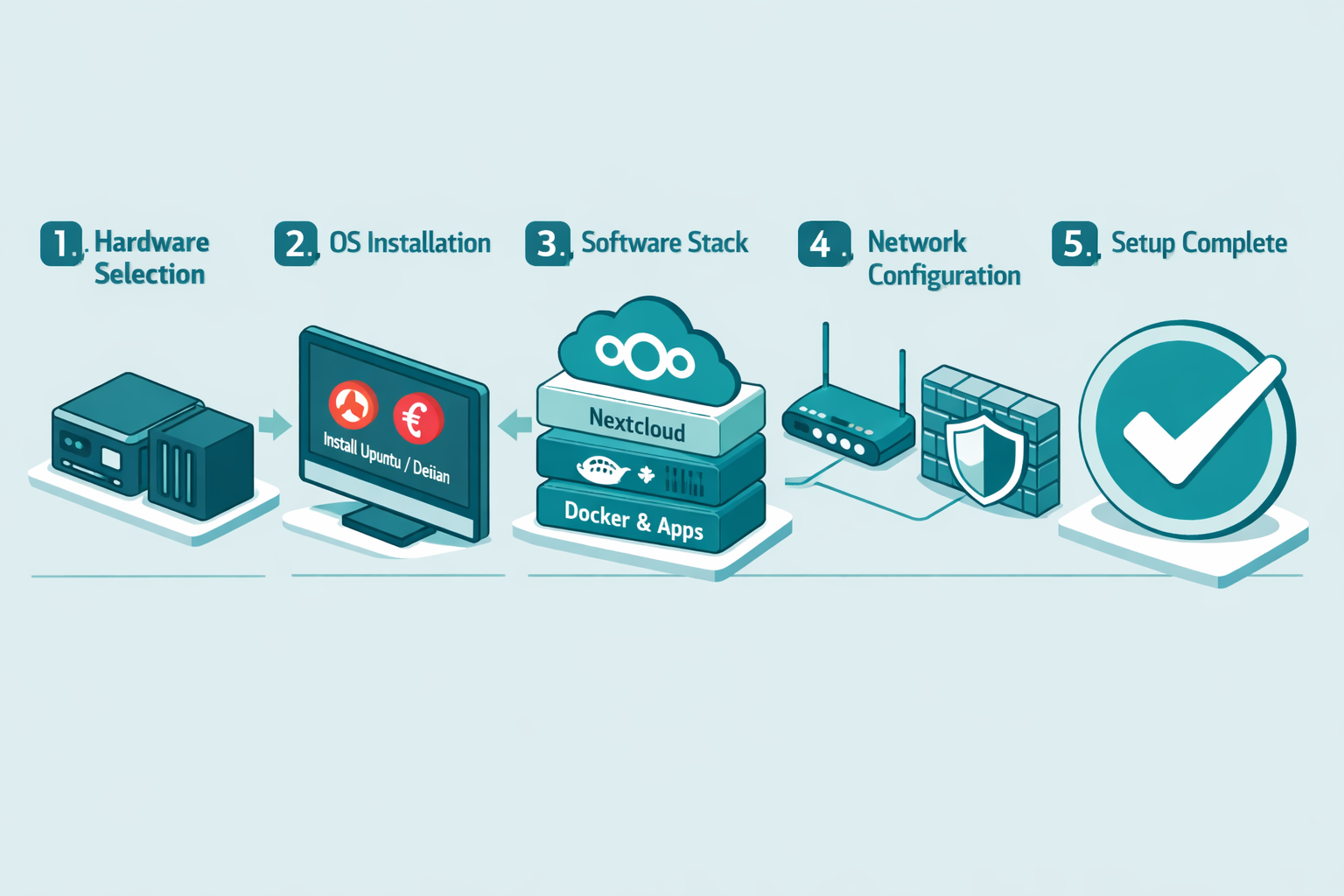
This process covers a Docker-based Nextcloud installation on Ubuntu Server — the most common and well-documented path.
Step 1: Prepare Your Server
- Install Ubuntu Server 24.04 LTS on your hardware or VPS
- Run
sudo apt update && sudo apt upgrade -y - Install Docker and Docker Compose: follow the official Docker documentation for Ubuntu
- Create a non-root user with sudo privileges — never run your cloud as root
Step 2: Get a Domain Name and SSL Certificate
- Buy a domain ($10–$15/year from Namecheap or Cloudflare Registrar)
- Point your domain’s DNS A record to your server’s public IP
- Use Caddy as your reverse proxy — it handles SSL certificates automatically via Let’s Encrypt
Common mistake: Skipping SSL and running over plain HTTP. Any self-hosted service exposed to the internet needs HTTPS. Caddy makes this nearly automatic.
Step 3: Deploy Nextcloud with Docker Compose
Create a docker-compose.yml file with Nextcloud, a MariaDB database container, and Redis for caching. The official Nextcloud Docker Hub page has a ready-to-use template.
Key environment variables to set:
NEXTCLOUD_ADMIN_USERandNEXTCLOUD_ADMIN_PASSWORDMYSQL_ROOT_PASSWORDandMYSQL_PASSWORDNEXTCLOUD_TRUSTED_DOMAINS(your domain name)
Run docker compose up -d and access your instance at your domain within a few minutes.
Step 4: Configure Backups
A self-hosted cloud without backups is a liability, not an asset.
Backup strategy (3-2-1 rule):
- 3 copies of your data
- 2 different storage types (e.g., local drive + cloud)
- 1 off-site copy (Backblaze B2 costs roughly $6/TB/month)
Use Nextcloud’s built-in backup app or rsync scripts to automate daily snapshots.
Step 5: Harden Security
- Enable two-factor authentication in Nextcloud
- Configure your firewall (
ufw) to allow only ports 80, 443, and your SSH port - Disable password login for SSH; use key-based authentication only
- Set up fail2ban to block brute-force login attempts
What Does It Actually Cost to Self-Host Your Cloud?
Self-hosting is almost always cheaper than commercial cloud at scale, but there are real upfront and ongoing costs.
One-time costs:
- Hardware: $0 (repurposed PC) to $300 (new NAS or mini PC)
- Domain name: ~$12/year
Ongoing costs:
- Electricity: A Raspberry Pi 5 running 24/7 costs roughly $5–$8/month in electricity (based on ~$0.15/kWh average U.S. rate)
- Off-site backup storage: $0–$6/month depending on data volume
- VPS (if not using home hardware): $5–$20/month
Total monthly estimate for a home user: $5–$15/month, with no per-user fees.
Compare that to Google One at $10/month for 2TB (one user) or Microsoft 365 Family at $130/year for six users — self-hosting breaks even quickly for families or small teams.
Common Mistakes to Avoid When Following a Self-Hosted Cloud Guide
Even experienced users make these errors. Knowing them in advance saves hours of troubleshooting.
- No off-site backup: A RAID array protects against drive failure, not against fire, theft, or ransomware. Always have an off-site copy.
- Exposing admin panels to the internet: Keep your Nextcloud admin interface behind a VPN or IP whitelist.
- Forgetting to update containers: Outdated Docker images are a common attack vector. Set a monthly reminder to run
docker compose pull && docker compose up -d. - Using a dynamic IP without DDNS: If your home IP changes, your domain stops resolving. Use a Dynamic DNS service (Cloudflare’s free DDNS or DuckDNS) to keep it updated automatically.
- Underestimating storage needs: Photo libraries and video files grow fast. Check your storage usage monthly and plan capacity increases before you hit 80% full.
Self-Hosted Cloud Guide: Privacy and Legal Considerations
Self-hosting gives you privacy, but it also gives you responsibility.
What you control:
- Who can access your data
- Where your data is physically stored
- What logs are kept and for how long
What you’re responsible for:
- GDPR compliance if you store data about EU residents (even for a small business)
- Keeping software patched and secure
- Responding to your own security incidents
For privacy-focused users who also want a private social network alongside their cloud, tools like Cabin and Stoat are worth exploring as complements to your self-hosted stack.
If you’re also self-hosting communication tools, check out noStrudel for Nostr-based messaging as a decentralized alternative to traditional chat apps.
FAQ: Self-Hosted Cloud Guide
Q: Do I need a static IP address to self-host?
No. A Dynamic DNS (DDNS) service updates your domain’s DNS record automatically when your IP changes. Cloudflare’s free DDNS client is a reliable option.
Q: Can I access my self-hosted cloud on my phone?
Yes. Nextcloud has official iOS and Android apps that sync files, contacts, and calendars. They work the same as Google Drive or iCloud apps.
Q: What happens if my home server goes down?
Your files become temporarily inaccessible from outside your home. Files already synced to your devices remain available locally. A UPS prevents most unexpected shutdowns.
Q: Is self-hosting safe from hackers?
It can be, if configured correctly. The biggest risks are unpatched software, weak passwords, and open ports. Follow the hardening steps in this guide and you’ll be more secure than most small businesses.
Q: How much technical skill do I need?
You need basic Linux comfort — navigating directories, editing text files, and running commands. You don’t need to be a developer. Most Docker-based setups have copy-paste instructions.
Q: Can I self-host for a small business team?
Yes. Nextcloud supports multi-user setups with role-based access, shared folders, and audit logs. It’s used by organizations with hundreds of users.
Q: What’s the difference between Nextcloud and OpenCloud?
OpenCloud is a newer, performance-focused fork. It’s faster for large file operations but has fewer third-party plugins than Nextcloud. Choose Nextcloud for plugin variety; choose OpenCloud for speed.
Q: Do I need a VPN to access my self-hosted cloud securely?
Not necessarily. HTTPS with a valid SSL certificate is sufficient for most users. A VPN adds an extra layer but also adds complexity.
Q: Can I migrate from Google Drive to a self-hosted cloud?
Yes. Use Google Takeout to export your files, then upload them to Nextcloud. Calendar and contacts export as standard .ics and .vcf files that Nextcloud imports directly.
Q: What’s the best self-hosted cloud option for beginners?
Nextcloud on a Synology NAS is the most beginner-friendly combination. Synology’s DSM interface handles most configuration through a GUI, and Nextcloud’s package is one-click to install.
Conclusion: Your Next Steps
Self-hosting your cloud in 2026 is more accessible than ever. The software is mature, Docker makes deployment straightforward, and the privacy and cost benefits are real.
Here’s what to do next:
- Decide on hardware — start with what you have (an old PC works) or buy a Raspberry Pi 5 or used mini PC
- Pick your software — Nextcloud is the safest first choice for most people
- Set up backups before you put real data on it — this is the step most people skip and regret
- Harden your setup — 2FA, firewall rules, SSH keys, and regular updates
- Migrate gradually — move one service at a time (files first, then calendar, then contacts)
The first setup takes an afternoon. The payoff is years of private, cost-effective cloud storage that you fully control. Start small, document your steps, and expand as your confidence grows.
For more honest reviews of self-hosted and privacy-focused tools, browse the ReviewNexa digital tools category.
References
- Docker Inc. Official Documentation. (2024). Docker Compose Overview. https://docs.docker.com/compose/
- Nextcloud GmbH. (2024). Nextcloud Hub Documentation. https://docs.nextcloud.com/
- Backblaze. (2023). Hard Drive Stats Q4 2023. https://www.backblaze.com/blog/backblaze-drive-stats-for-q4-2023/
- Electronic Frontier Foundation. (2023). Privacy Best Practices for Self-Hosters. https://www.eff.org/