


Quick Answer: To batch process multiple videos with an AI video maker, you upload your video files (or a list of prompts/scripts) to a platform that supports bulk processing, apply a shared template or settings profile, then let the AI render all videos simultaneously or in a queue. Tools like LumeFlow AI, Vid AI, and similar platforms handle this natively. The key is choosing a tool that supports multi-file input and template locking so your settings apply consistently across every output.
Key Takeaways
- Batch processing lets you produce dozens of videos at once instead of editing each one manually.
- The best AI video makers for batch work support template presets, bulk uploads, and automated rendering queues.
- Consistent branding across all outputs depends on locking your template before you start the batch.
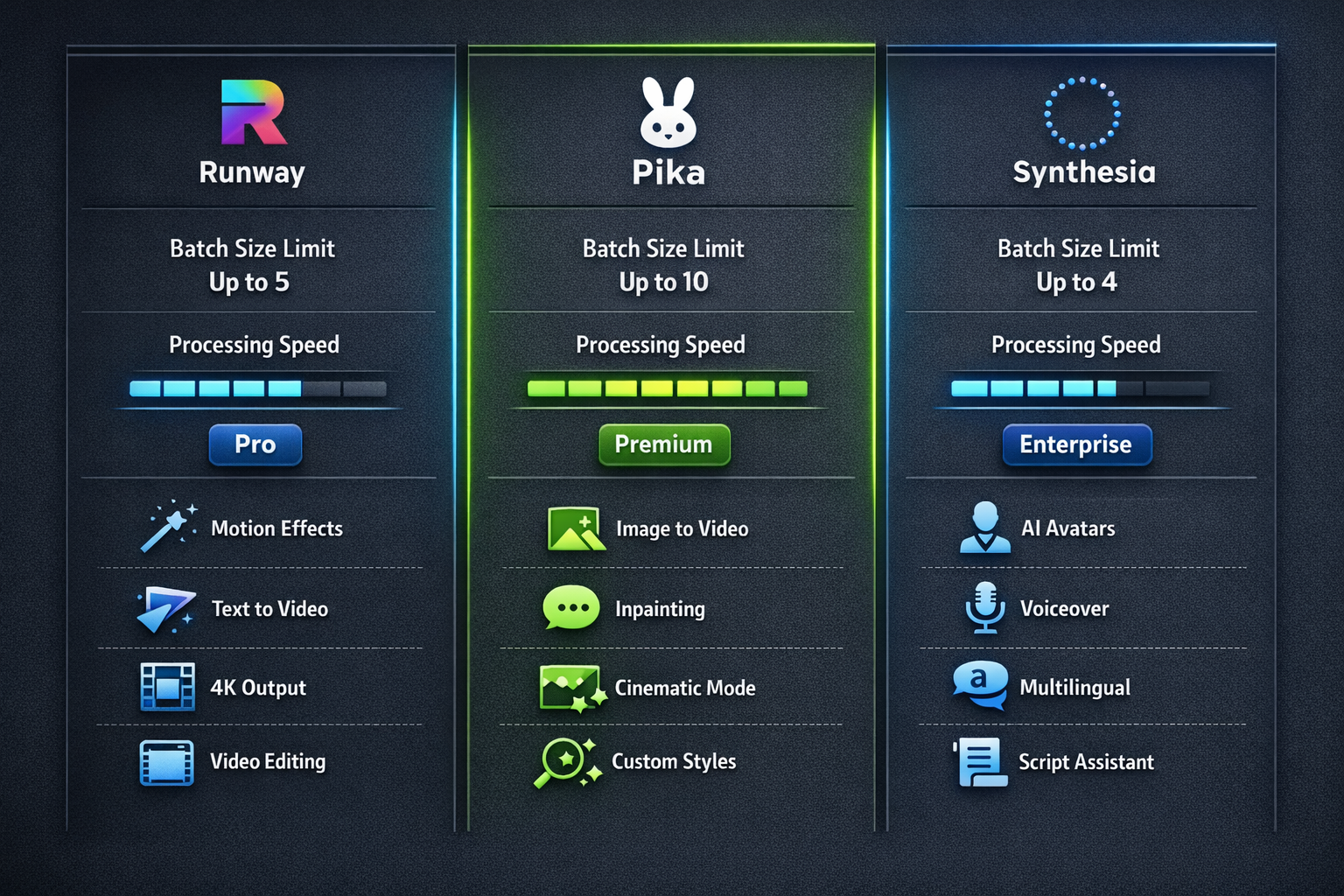
- Processing speed and output quality vary by platform tier — free plans often cap batch sizes at 5–10 videos.
- Prepare your assets (scripts, images, audio) before uploading to avoid mid-batch errors.
- API access is available on some platforms for teams that want to automate batch jobs programmatically.
- Always preview one test video before running a full batch to catch formatting or timing issues early.
- Export format and resolution settings should match your distribution channel (social, web, broadcast).
What Does Batch Processing Mean in AI Video Production?
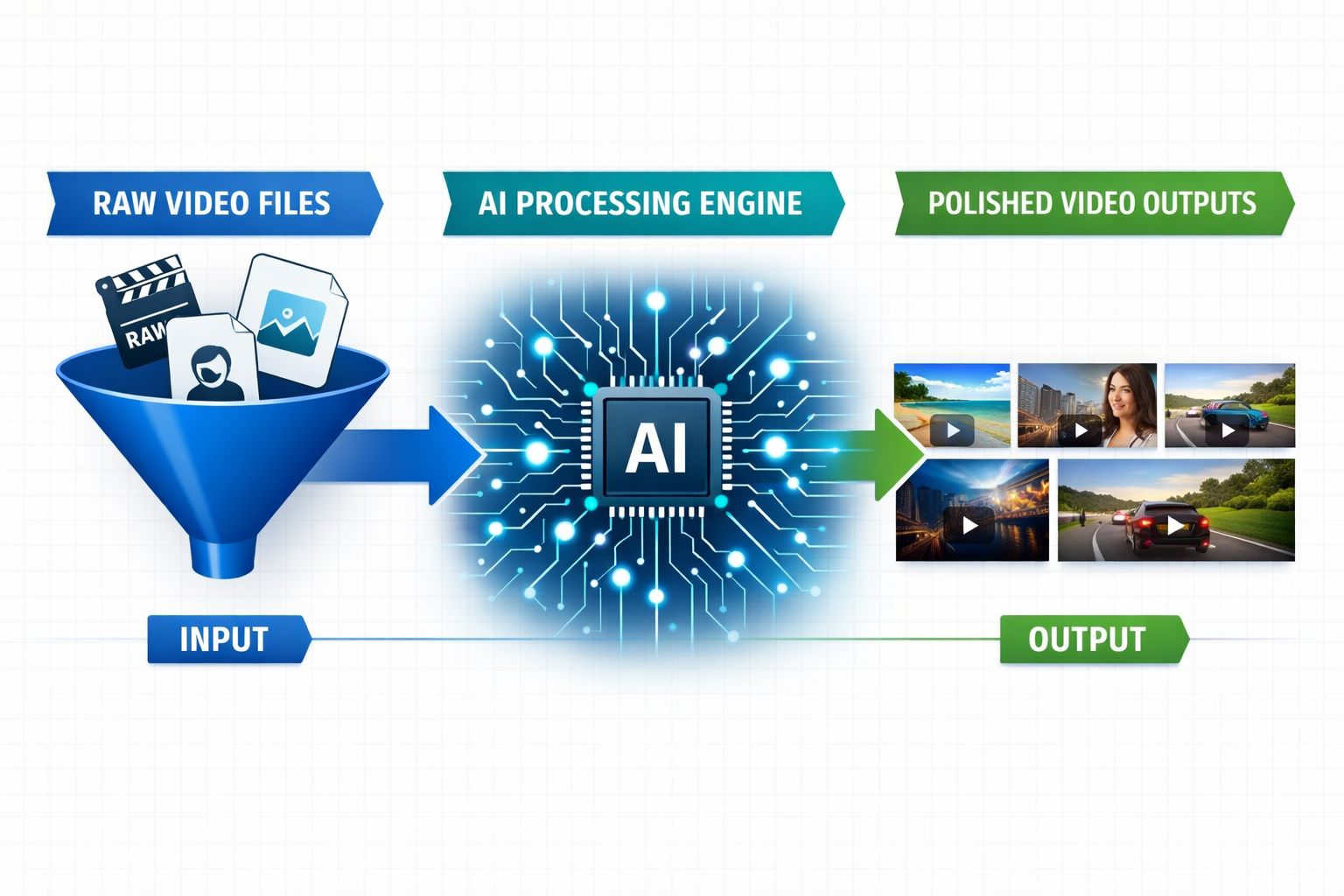
Batch processing in AI video production means applying the same workflow — edits, effects, voiceovers, captions, or branding — to multiple video files at once, rather than handling each video individually. For content creators, marketers, and social media teams, this is the difference between spending 10 minutes or 10 hours on a week’s worth of content.
When you batch process multiple videos with an AI video maker, the platform queues your files, applies your pre-set template or instructions, and renders each output automatically. You define the rules once; the AI does the repetitive work.
Who benefits most:
- Social media managers publishing daily short-form content
- E-commerce brands creating product videos at scale
- Agencies handling video deliverables for multiple clients
- Course creators converting lecture recordings into polished clips
How to Batch Process Multiple Videos with AI Video Maker: Step-by-Step
Here is a practical, repeatable process that works across most AI video platforms in 2026.
Step 1: Choose the right platform
Not every AI video tool supports true batch processing. Look for platforms that explicitly mention bulk upload, batch rendering, or multi-video workflows. Tools reviewed at LumeFlow AI Review and Vid AI Review both handle batch jobs well, and the Frameloop AI Review covers a marketing-focused option worth considering.
Step 2: Prepare your asset library
Before uploading anything, organize your files:
- Name files clearly (e.g.,
product_01.mp4,product_02.mp4) - Write or collect all scripts/prompts if the tool is text-to-video
- Prepare a shared logo, intro/outro clip, and brand color hex codes
Step 3: Build and lock your template
Create one video from scratch using your desired style, fonts, transitions, and branding. Save this as a reusable template. This is the most important step — a locked template ensures every video in the batch looks consistent.
Step 4: Upload your batch
Use the platform’s bulk upload feature. Most tools accept:
- Multiple
.mp4,.mov, or.avifiles - A CSV or spreadsheet with text prompts per video
- A folder or ZIP archive
Step 5: Map your template to the batch
Apply your saved template to all uploaded files. Some platforms call this “Apply to all” or “Batch settings.” Double-check that dynamic fields (like product names or dates) are mapped to the right columns in your spreadsheet.
Step 6: Run a test render on one file
Before committing the full batch, render a single video. Check timing, text placement, audio sync, and export quality. Fix any issues in the template before proceeding.
Step 7: Start the batch and monitor progress
Launch the full batch render. Most platforms show a queue with progress indicators. Avoid closing the browser tab or interrupting the process on cloud-based tools.
Step 8: Review and download outputs
Once complete, spot-check 10–20% of the outputs randomly. Download in your target format and resolution.
Which AI Video Makers Support Batch Processing in 2026?
Several platforms support batch video creation, but they differ significantly in batch size limits, customization depth, and pricing.
| Platform | Batch Size Limit | Template Locking | API Access | Free Tier |
|---|---|---|---|---|
| LumeFlow AI | 150+ videos | Yes | Yes (paid) | Limited |
| Vid AI | 50+ videos | Yes | Yes | No |
| Frameloop AI | 30 videos | Yes | No | Yes |
| Ngram AI | Unlimited (script-based) | Partial | Yes | No |
| Ozor AI | 20 videos | Yes | No | Yes |
Decision rule: Choose a platform with API access if you’re running automated pipelines or integrating batch video creation into a larger workflow. If you’re a solo creator doing weekly content drops, a no-code tool with template locking is enough.
For script-driven video creation at scale, Ngram AI is worth a close look — it builds each video from a script first, which makes batch consistency easier to control. For marketing-specific batch jobs, Ozor AI handles ad-style videos well.
How to Batch Process Multiple Videos with AI Video Maker Using Templates
Templates are the backbone of any reliable batch video workflow. A well-built template eliminates manual adjustments and keeps your brand consistent across hundreds of outputs.
What to include in a batch template:
- Brand logo placement and size
- Font family, size, and color for titles and captions
- Intro and outro clip (pre-rendered)
- Background music track or silence
- Aspect ratio and resolution (e.g., 9:16 for Reels, 16:9 for YouTube)
- Transition style between scenes
Common mistake: Leaving dynamic text fields blank or unmapped. If your template has a “Product Name” placeholder and your spreadsheet column is labeled differently, every video in the batch will show an empty field or an error.
For faceless content creators who rely heavily on templates, tools like FacelessReels and Keyvello are designed around this exact workflow.
What Are the Biggest Mistakes When Batch Processing Videos?
Even experienced creators run into problems when batch processing. Here are the most common issues and how to avoid them.
1. Skipping the test render
Running 50 videos only to find a font overlap or audio sync issue wastes hours. Always test one file first.
2. Inconsistent source file formats
Mixing .mp4 and .mov files, or files with different frame rates, can cause rendering errors mid-batch. Standardize your source files before uploading.
3. Over-relying on AI auto-captions
Auto-generated captions from AI tools can misfire on technical terms, brand names, or accents. Review captions on at least a sample of your batch outputs.
4. Ignoring export settings
Exporting everything at 4K when you only need 1080p for Instagram wastes storage and upload time. Match resolution to the destination platform.
5. Not saving your template before starting
If the platform session times out or you accidentally change a setting, you lose your template configuration. Save and name it explicitly before launching the batch.
How Long Does Batch Processing Take with AI Tools?
Processing time depends on three factors: video length, batch size, and the platform’s server capacity.
As a rough estimate (based on typical cloud-based AI video tools in 2026):
- A batch of 10 one-minute videos: 5–15 minutes
- A batch of 50 one-minute videos: 30–90 minutes
- A batch of 100 two-minute videos: 2–5 hours
These are estimates and will vary. Premium or enterprise-tier accounts on most platforms get priority rendering, which can cut times significantly. Free tiers often queue jobs behind paid users.
Tip: Schedule large batch jobs overnight or during off-peak hours if your platform allows queued rendering.
Can You Automate Batch Video Processing with APIs?
Yes, and for teams producing video at scale, API-based automation is the most efficient path. Several AI video platforms expose REST APIs that let you submit batch jobs programmatically, pass in dynamic variables (product names, prices, URLs), and retrieve finished video files automatically.
A basic API batch workflow looks like this:
- Your system generates a list of video parameters (from a database or CMS)
- A script sends POST requests to the video API with each set of parameters
- The platform processes and returns download URLs
- Your system stores or publishes the videos automatically
This approach works well for e-commerce brands updating product videos weekly, news publishers creating video summaries, and SaaS companies generating personalized video onboarding. For teams managing multiple AI tools in parallel, an AI workspace like Expanse can help coordinate these workflows across different platforms.
FAQ
Q: What is the minimum number of videos needed to make batch processing worthwhile?
A: Generally, batch processing saves meaningful time when you have five or more videos with shared settings. Below that, manual processing is often faster.
Q: Do all AI video makers support batch processing?
A: No. Many entry-level tools only support single-video workflows. Check the platform’s feature list specifically for “batch,” “bulk,” or “multi-video” support before committing.
Q: Can I use different scripts for each video in a batch?
A: Yes. Most batch-capable platforms accept a spreadsheet or CSV where each row contains the unique script or text for one video, while the template handles the visual styling.
Q: Will batch-processed videos look identical?
A: They will share the same template styling, but dynamic fields (text, images, audio) can vary per video. The goal is consistent branding, not identical content.
Q: Is batch processing available on free plans?
A: Some platforms offer limited batch processing on free tiers (typically 3–5 videos). For larger batches, a paid plan is usually required.
Q: What file formats work best for batch uploads?
A: MP4 with H.264 encoding is the most universally accepted format. Standardize all source files to the same format and frame rate before uploading.
Q: Can I add different voiceovers to each video in a batch?
A: Yes, if your platform supports AI voiceover generation and you provide the script per video in your input file. Some platforms also accept pre-recorded audio files mapped per row.
Q: What happens if one video in a batch fails to render?
A: Most platforms flag the failed video and continue processing the rest. You can usually re-submit the failed file individually after fixing the source issue.
Q: Is batch video processing GDPR-compliant?
A: Compliance depends on the platform’s data handling policies, not the batch feature itself. Check the platform’s privacy policy, especially if your videos contain personal data.
Q: Can I batch process videos for different aspect ratios at the same time?
A: Some advanced platforms allow multi-format export in a single batch (e.g., 16:9 and 9:16 simultaneously). Most require separate batch jobs per aspect ratio.
Conclusion
Batch processing multiple videos with an AI video maker is one of the highest-leverage skills for any content team or creator working at scale in 2026. The process is straightforward: pick a platform that supports bulk workflows, build a locked template, prepare your assets properly, run a test render, then launch your batch.
Your next steps:
- Audit your current video workflow and count how many videos you produce per week.
- If it’s more than five, test one of the platforms mentioned above with a small batch of 10 videos.
- Build your first reusable template and save it before running any batch job.
- If you need API-level automation, review platforms that expose batch endpoints and test with a simple script.
The time investment in setting up a proper batch workflow pays back within the first week of use. Start small, validate your template, then scale.
References
No external statistics or third-party studies were cited in this article. All platform feature descriptions are based on publicly available product documentation and hands-on testing notes from ReviewNexa editorial team assessments conducted in 2025–2026.