

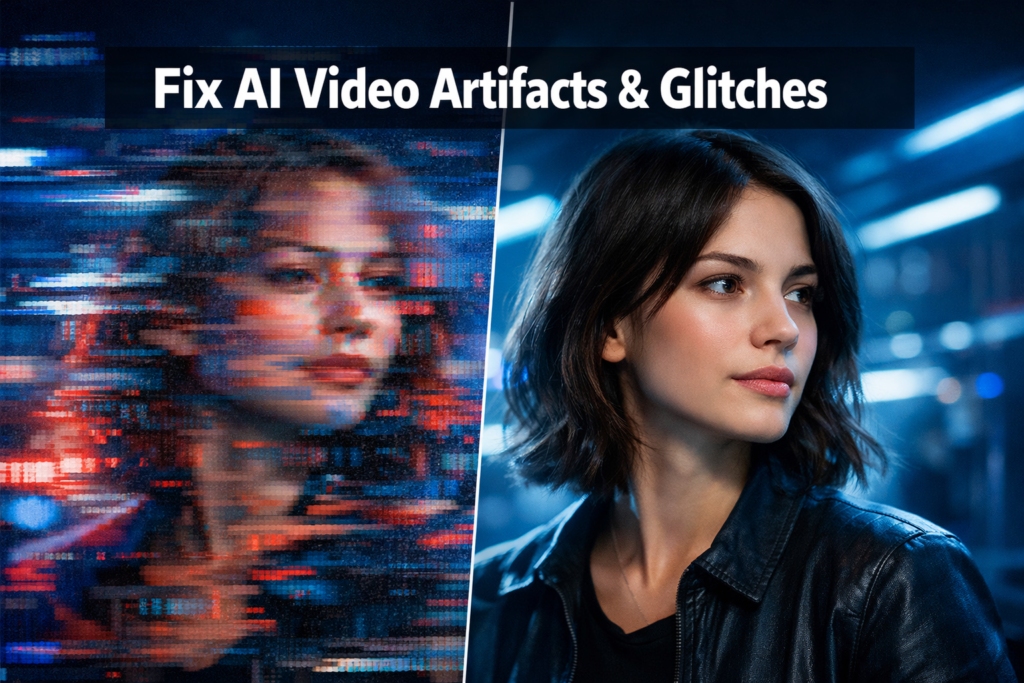
Quick Answer: To fix AI video generation artifacts and glitches, start by refining your text prompts, adjusting generation parameters (like guidance scale and inference steps), and running post-processing filters in video editing software. Most artifacts — flickering, morphing faces, pixel bleeding — stem from either a weak prompt, insufficient compute settings, or model limitations that post-production tools can correct.
Key Takeaways
- Prompt quality is the first fix: Vague prompts produce inconsistent frames and visual noise.
- Increase inference steps (where the tool allows) to reduce blurring and pixel artifacts.
- Temporal consistency settings control frame-to-frame stability — always enable them if available.
- Post-processing tools like DaVinci Resolve, Topaz Video AI, and After Effects can remove many residual glitches.
- Face morphing and lip-sync errors often need specialized AI correction tools, not just prompt tweaks.
- Output resolution and codec settings affect artifact severity — export at the highest supported quality.
- Iterative generation (regenerating specific segments rather than the whole video) saves time and reduces compounding errors.
- Model choice matters: Different AI video tools have different artifact profiles; switching tools is sometimes the fastest fix.
What Causes AI Video Generation Artifacts and Glitches?
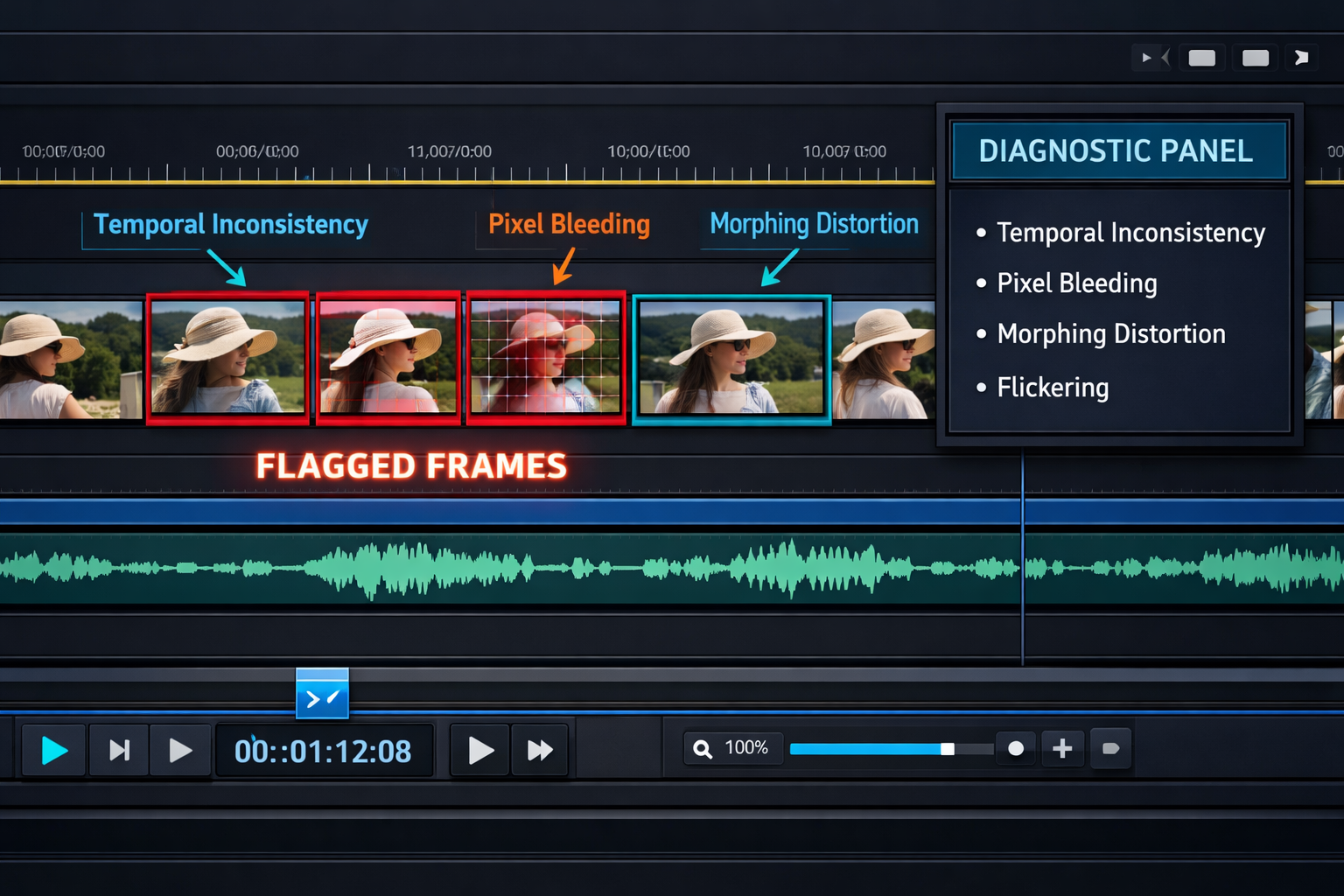
AI video artifacts happen when the model fails to maintain visual or temporal consistency across frames. The root causes fall into a few clear categories.
Common causes include:
- Weak or ambiguous prompts — The model “guesses” missing details, producing inconsistent results between frames.
- Low inference steps — Fewer denoising steps mean less refined output; artifacts appear as blurring or pixel noise.
- Model limitations — Current AI video models still struggle with complex motion, hands, and fine facial details.
- Hardware constraints — Insufficient VRAM forces the model to compress or skip frame data.
- Codec and export errors — Lossy compression during export can introduce blocking artifacts unrelated to the AI model itself.
Understanding which cause applies to your video is the fastest path to the right fix. A flickering background points to temporal inconsistency; a melting face points to model limitations or prompt gaps.
How to Fix AI Video Generation Artifacts and Glitches Through Better Prompting
The single most effective first step is improving your prompt. A well-structured prompt reduces artifact frequency before any post-processing is needed.
Prompt fixes that reduce artifacts:
- Be specific about subjects and motion. Instead of “a person walking,” write “a woman in a red jacket walking slowly on a sunlit sidewalk, smooth motion, cinematic.”
- Add quality modifiers. Include terms like “sharp focus,” “temporally consistent,” “no flickering,” “photorealistic” — many models respond to these.
- Use negative prompts. Most tools support negative prompts. Add “blurry, distorted, flickering, artifacts, morphing” to the negative field.
- Limit scene complexity. Multiple subjects, fast camera movement, and busy backgrounds all increase artifact risk. Simplify where possible.
- Specify lighting conditions. Ambiguous lighting causes the model to shift light sources between frames, creating flicker.
💡 Quick example: A prompt like “cinematic close-up of a man speaking, soft studio lighting, consistent background, sharp facial features, no distortion” will produce far fewer face-morphing artifacts than “a man talking.”
If you’re using a tool like Pika AI or Wula AI, check their documentation for model-specific prompt syntax — some tools have unique keywords that trigger quality modes.
Which Generation Settings Reduce Glitches Most Effectively?
After prompting, generation parameters are your next lever. These settings directly control output quality.
| Setting | What It Does | Recommended Adjustment |
|---|---|---|
| Inference Steps | Controls denoising passes | Increase (50–100+ for quality) |
| Guidance Scale (CFG) | Prompt adherence strength | 7–12 for most models |
| Temporal Consistency | Frame-to-frame stability | Enable if available |
| Seed | Randomness control | Fix seed to reproduce results |
| Resolution | Output frame size | Use native or highest supported |
| Frame Rate | Smoothness | 24–30 fps minimum |
Choose higher inference steps if you’re seeing blurry or “painterly” artifacts. Choose a lower guidance scale if the video looks over-saturated or distorted — too-high CFG values can cause color bleeding.
How to Fix AI Video Generation Artifacts and Glitches in Post-Production
When generation-side fixes aren’t enough, post-processing handles the rest. This is where most professionals spend their correction time.
Top post-processing approaches:
- Topaz Video AI — Excellent for upscaling and removing temporal noise. Its “Stabilization” and “Artemis” models specifically target AI video artifacts.
- DaVinci Resolve (Noise Reduction) — The temporal noise reduction tool smooths frame-to-frame inconsistencies without blurring detail.
- Adobe After Effects — Use the “Remove Grain” effect and “Warp Stabilizer” for motion-related glitches.
- Frame interpolation — Tools like RIFE (open-source) can generate missing or corrupted frames between good ones.
- Manual frame replacement — For isolated bad frames, duplicate a clean adjacent frame and blend it in.
For lip-sync artifacts specifically — a common issue with talking-head videos — dedicated tools like those reviewed in our Diff2Lip analysis or LatentSync review offer model-level correction that post-processing software can’t replicate.
How to Fix Face Morphing and Talking Head Glitches
Face morphing is one of the most disruptive AI video glitches and needs a targeted approach.
Step-by-step fix for face artifacts:
- Identify affected segments — Scrub through the video and mark timestamps where morphing occurs.
- Regenerate those segments only — Most tools let you re-run specific clips. Use the same seed and prompt but increase inference steps.
- Use a face-restoration model — Tools like GFPGAN or CodeFormer can be applied in post to sharpen and stabilize facial features.
- Switch to a talking-head specialist — If your use case involves speaking subjects, tools built specifically for this (see our Float by DeepBrain AI review or GeneFace review) handle face consistency far better than general video generators.
- Check reference image quality — If the tool uses a reference image, a low-resolution or poorly-lit source photo amplifies face artifacts.
What Are the Most Common AI Video Glitches and Their Specific Fixes?
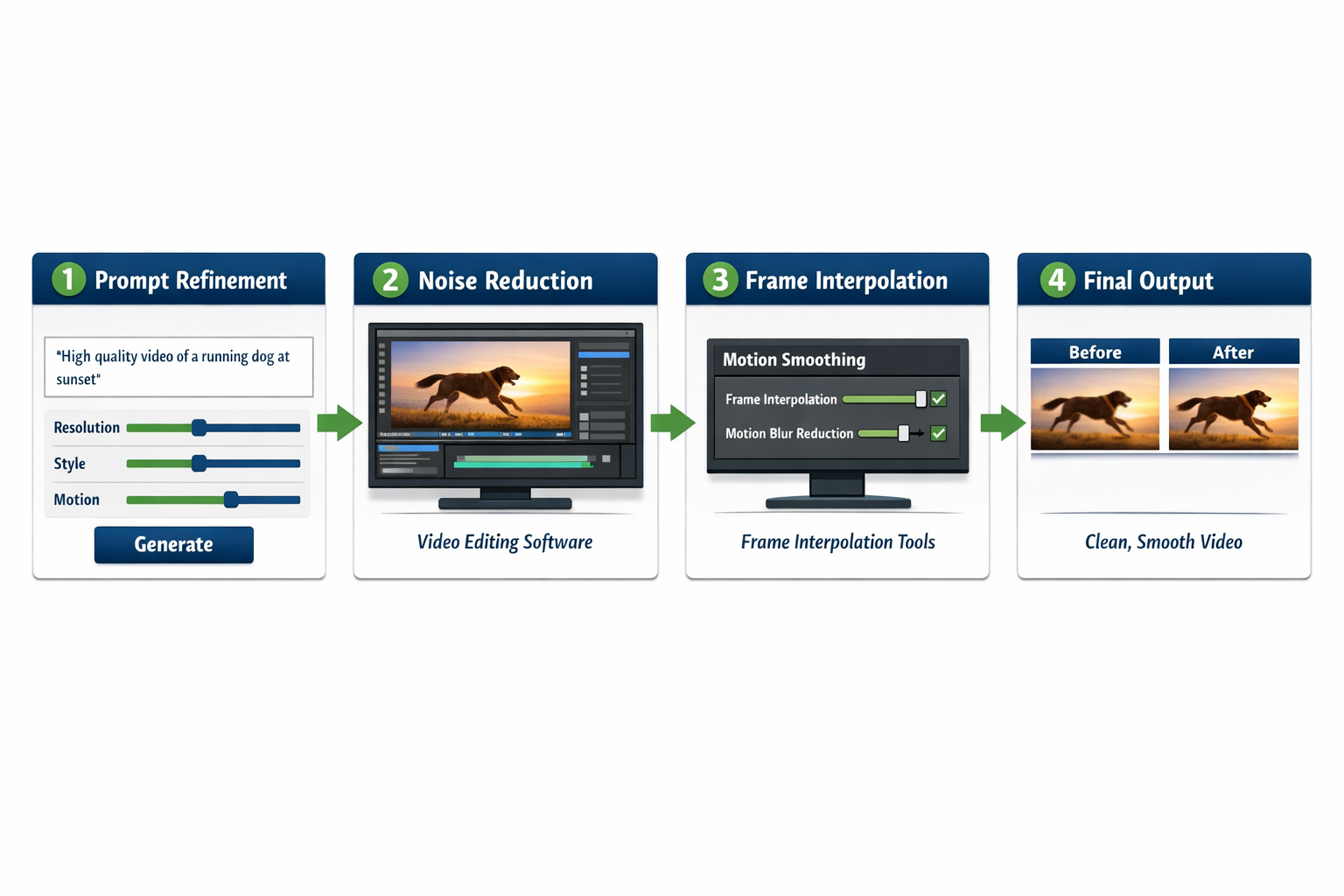
Each artifact type has a targeted solution. Here’s a direct reference guide.
Flickering / strobing frames
- Cause: Temporal inconsistency between frames
- Fix: Enable temporal consistency mode; apply temporal noise reduction in DaVinci Resolve
Pixel bleeding / color smearing
- Cause: Low inference steps or high guidance scale
- Fix: Increase steps; reduce CFG to 7–9; apply sharpening in post
Background morphing
- Cause: Ambiguous background prompt; model re-inventing the scene each frame
- Fix: Add detailed background description to prompt; use “static background” or “consistent environment” modifiers
Object distortion (hands, text, logos)
- Cause: AI models still struggle with fine structural details
- Fix: Avoid generating hands or text in AI video; add these elements in post-production using compositing
Motion blur artifacts
- Cause: Frame rate too low or fast motion exceeding model capability
- Fix: Increase frame rate setting; use RIFE interpolation in post; slow down motion in the prompt
Compression blocking
- Cause: Lossy export codec (e.g., H.264 at low bitrate)
- Fix: Export at higher bitrate; use ProRes or H.265 for intermediate files
When Should You Switch AI Video Tools Instead of Fixing Artifacts?
Sometimes fixing artifacts in a given tool takes more time than switching to a better-suited one.
Switch tools if:
- Artifacts persist after prompt refinement, parameter adjustment, and post-processing
- The glitch type is a known limitation of the model (e.g., some tools consistently fail at motion)
- You’re generating talking-head content with a general-purpose video tool
For example, DomoAI handles stylized animation artifacts differently than photorealistic generators. If your project needs a specific visual style, matching the tool to the task eliminates entire categories of glitches from the start.
Our AI video tools category covers a wide range of options with honest artifact assessments for each.
FAQ: Fixing AI Video Artifacts and Glitches
Q: Why does my AI video flicker even with a good prompt?
A: Flickering usually signals temporal inconsistency — the model isn’t linking frames coherently. Enable temporal consistency settings in the tool, or apply temporal noise reduction in DaVinci Resolve after export.
Q: Can I fix AI video artifacts without video editing software?
A: Yes, partially. Re-generating with better prompts and higher inference steps fixes many issues at the source. For residual artifacts, some AI tools include built-in enhancement modes that don’t require external software.
Q: How many inference steps should I use to avoid artifacts?
A: Most models produce clean results between 50 and 100 steps. Below 30 steps, blurring and pixel noise become common. Above 100, quality gains are minimal and generation time increases significantly.
Q: Why do hands always look wrong in AI video?
A: Hand anatomy is notoriously difficult for current AI models because of the high variation in finger positions. The practical fix is to keep hands out of frame or add them in post using compositing.
Q: Does resolution affect artifact frequency?
A: Yes. Generating at lower resolutions and upscaling often produces fewer structural artifacts than generating at full resolution with insufficient compute. Topaz Video AI handles the upscaling cleanly.
Q: Are some AI video tools better at avoiding artifacts than others?
A: Significantly so. Tools purpose-built for specific tasks (lip-sync, talking heads, animation) outperform general-purpose generators for their target use case. Matching the tool to the task is often the best “fix.”
Q: What codec should I export AI video in to avoid compression artifacts?
A: Use H.265 (HEVC) at high bitrate for delivery, or ProRes 422/4444 for intermediate editing files. Avoid H.264 at low bitrates — it introduces blocking that compounds existing AI artifacts.
Q: Can negative prompts really reduce glitches?
A: Yes, consistently. Adding terms like “flickering, distorted, blurry, morphing, artifacts” to the negative prompt field steers the model away from those outputs. It’s one of the cheapest fixes available.
Conclusion: A Practical Action Plan for Cleaner AI Video
Fixing AI video generation artifacts and glitches is a layered process — and that’s actually good news, because it means you have multiple intervention points. Start with your prompt (the cheapest fix), then adjust generation parameters, then apply post-processing, and finally consider whether a specialized tool is the right choice for your use case.
Your next steps:
- Audit your current prompt — Add specificity, quality modifiers, and negative prompts before anything else.
- Raise inference steps to at least 50 if your tool allows it.
- Enable temporal consistency in generation settings.
- Export at high bitrate using H.265 or ProRes to avoid codec-level artifacts.
- Apply temporal noise reduction in DaVinci Resolve or Topaz Video AI for residual glitches.
- For face or lip-sync issues, switch to a purpose-built tool rather than fighting the general model.
The tools are improving fast in 2026, but understanding how to fix AI video generation artifacts and glitches yourself keeps you in control of quality — regardless of which platform you use.
References
- Rombach, R., Blattmann, A., Lorenz, D., Esser, P., & Ommer, B. (2022). High-Resolution Image Synthesis with Latent Diffusion Models. CVPR 2022. https://arxiv.org/abs/2112.10752
- Ho, J., Salimans, T., Gritsenko, A., Chan, W., Norouzi, M., & Fleet, D. J. (2022). Video Diffusion Models. NeurIPS 2022. https://arxiv.org/abs/2204.03458
- Wang, X., Li, Y., Zhang, H., & Shan, Y. (2021). Towards Real-World Blind Face Restoration with Generative Facial Prior. CVPR 2021. https://arxiv.org/abs/2101.04061