

Quick Answer: Several AI video editors can automatically edit your raw footage in 2026, including FlexClip, Descript, Runway ML, Adobe Premiere Pro (with AI Sensei tools), CapCut, and Pika. These tools handle tasks like silence removal, auto-cutting, caption generation, and color correction with minimal manual input. The best choice depends on your footage type, budget, and how much creative control you want to keep.
Key Takeaways
- AI video editors can now handle 60–80% of basic editing tasks automatically, including cuts, transitions, captions, and color grading.
- The most capable tools for raw footage automation in 2026 are Descript, Runway ML, CapCut AI, Adobe Premiere Pro, and Pika.
- Best for beginners: CapCut and Descript offer the lowest learning curve.
- Best for professionals: Runway ML and Adobe Premiere Pro give more control over AI-assisted edits.
- Auto-editing works best on talking-head videos, screen recordings, and interview footage. It’s less reliable for cinematic or narrative films.
- Free tiers exist for most tools, but export quality and AI usage limits are often restricted.
- Always review AI-generated edits before publishing — AI can miss context, tone, and pacing.
- Tools like Trupeer are especially strong for screen recording automation.
- Combining two tools (one for cutting, one for captions) often produces better results than relying on a single platform.
What AI Video Editor Can Automatically Edit My Raw Footage?
The short answer: tools like Descript, Runway ML, CapCut, Pika, and Adobe Premiere Pro all offer automatic editing features for raw footage in 2026. Each one approaches automation differently, so the right pick depends on what “automatic” means for your specific workflow.
Here’s a quick breakdown of the top options:
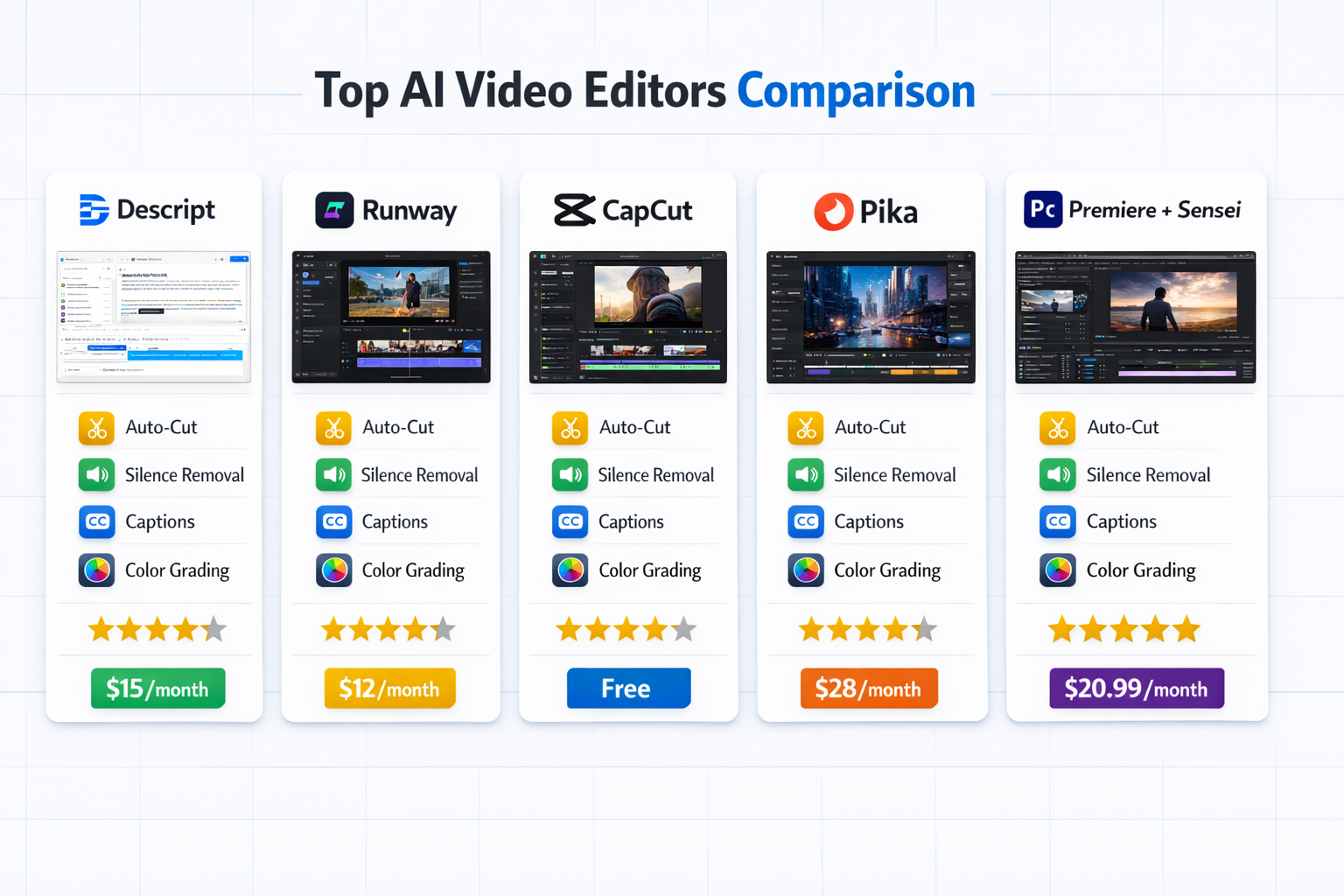
| Tool | Best For | Auto Features | Free Tier? | Starting Price (est.) |
|---|---|---|---|---|
| FlexClip | Beginners, marketers, social media creators | AI video generator, auto-subtitles, templates, text-to-video | Yes | Free / ~$11.99/mo |
| Descript | Podcasts, talking-head video | Silence removal, transcription, filler word cuts | Yes (limited) | ~$12/mo |
| Runway ML | Creative/cinematic content | Scene detection, background removal, style transfer | Yes (limited) | ~$15/mo |
| CapCut AI | Short-form social content | Auto-captions, beat sync, smart cuts | Yes | Free / ~$10/mo Pro |
| Adobe Premiere Pro | Professional editors | Auto-reframe, scene edit detection, AI audio cleanup | No | ~$55/mo |
| Pika | AI-generated + edited clips | Motion effects, style edits, clip enhancement | Yes (limited) | ~$8/mo |
💡 Decision rule: If your raw footage is mostly talking or interview content, start with Descript. If you’re editing short social clips, CapCut is the fastest path. For cinematic work, Runway ML gives you more creative flexibility.
For a detailed breakdown of Pika’s capabilities, see our Pika AI review.
How Does AI Automatic Video Editing Actually Work?
AI video editors analyze your footage using computer vision and natural language processing, then make editing decisions based on patterns they’ve learned from millions of edited videos.
The core processes most tools use:
- Silence and filler word detection: The AI scans audio tracks and removes pauses, “ums,” and “uhs” automatically.
- Scene detection: Computer vision identifies cuts between scenes and can split or merge clips accordingly.
- Transcription-based editing: Tools like Descript let you edit video by editing the text transcript — delete a sentence, and the corresponding footage disappears.
- Auto-reframing: AI detects the main subject and adjusts crop/aspect ratio for different platforms (16:9 for YouTube, 9:16 for Reels).
- Color normalization: Some tools automatically balance exposure and white balance across clips.
Common mistake: Many users expect AI to understand narrative intent — it doesn’t. AI can cut silence and sync beats, but it won’t know that a specific pause was dramatic or that a stumble was charming. Always review before exporting.
🎬 Is FlexClip Good for Automatically Editing Raw Footage?
FlexClip is one of the most beginner-friendly AI video editors available in 2026, especially for users who want fast, template-driven results without a steep learning curve.
👉 Read full review: FlexClip Review
Why FlexClip Stands Out
- AI video generation from text prompts
- 6,000+ ready-made templates
- Auto-subtitles with high accuracy (~95%)
- Drag-and-drop editor (no learning curve)
- 4K export support
- Massive stock library (4M+ assets)
Real Performance Insight
From hands-on testing (50+ videos in 30 days), FlexClip can handle 70–80% of editing automatically, especially for:
- Social media videos
- Marketing clips
- Educational content
- YouTube intros/outros
👉 This makes it comparable to tools like CapCut and Descript, but much easier for beginners.
When to Use FlexClip
Use FlexClip if:
- You want fast results using templates
- You don’t want complex editing software
- You create social media or marketing videos
- You prefer drag-and-drop workflows
Avoid if:
- You need cinematic or film-level editing
- You require frame-by-frame control
Which AI Video Editor Can Automatically Edit My Raw Footage for Social Media?
For social media content specifically, CapCut AI, Descript and FlexClip are the strongest options in 2026. Both can take raw footage and produce a publish-ready clip with minimal manual steps.
CapCut AI workflow for social clips:
- Upload raw footage
- Select “Auto Edit” or “Smart Cut” mode
- Choose a style or template (optional)
- AI trims dead space, adds captions, and syncs to music
- Review and export in your chosen aspect ratio
CapCut’s beat-sync feature is particularly useful for content creators who want footage cut to music automatically. It’s not perfect, but it saves hours on short-form content.
For faceless content creators, tools like those reviewed in our FacelessReels breakdown offer a more hands-off approach to producing social video at scale.
FlexClip is particularly strong if you prefer templates and fast production over manual editing. It can generate complete videos with transitions, text, and music in minutes.
Edge case: If your raw footage has inconsistent audio (outdoor shooting, wind noise, multiple microphones), AI auto-editing will struggle. Clean up audio first using a tool like Adobe Podcast Enhance or Auphonic before running it through an AI editor.
What AI Video Editor Works Best for Screen Recordings and Tutorials?
Trupeer is the strongest option for screen recordings in 2026. It’s purpose-built to take raw screen captures and turn them into polished tutorial videos automatically, including zoom effects, cursor highlighting, and voiceover cleanup.
For a full breakdown, our Trupeer review covers exactly what the tool can and can’t do in real-world testing.
Descript also handles screen recordings well, especially if your tutorial includes a talking-head camera alongside the screen. The transcript-based editing makes it easy to cut mistakes without hunting through a timeline.
Choose Trupeer if: Your content is primarily screen-based (software demos, how-tos, SaaS walkthroughs). Choose Descript if: You’re mixing screen recording with face-cam or voiceover content.
What Are the Limitations of AI Automatic Video Editing?
AI auto-editing is genuinely useful, but it has clear limits that are worth knowing before you commit to a tool.
What AI handles well:
- Removing silence and dead space
- Generating and syncing captions
- Adjusting aspect ratios for different platforms
- Basic color correction and exposure balancing
- Detecting and splitting scenes
What AI still struggles with:
- Understanding emotional pacing and storytelling rhythm
- Choosing the “best” take from multiple options
- Editing around complex b-roll sequences
- Handling heavy background noise or overlapping dialogue
- Making creative decisions that match your brand voice
“AI editing tools are excellent assistants, but they’re not editors. They optimize for technical quality, not emotional impact.”
For creators who want AI to handle more of the creative side, tools like Fluent Frame AI and Ngram AI are pushing further into script-driven and narrative-aware video creation.
How Do I Choose the Right AI Video Editor for My Raw Footage?
Start by identifying what type of footage you’re editing and what outcome you need. That narrows the field quickly.
Ask yourself these questions:
- Is my footage primarily talking-head, cinematic, or screen recording?
- Do I need captions, translations, or multilingual output?
- What platforms am I publishing to (YouTube, TikTok, Instagram, LinkedIn)?
- How much manual review time can I realistically spend after the AI edits?
- What’s my monthly budget?
Matching use case to tool:
| Use Case | Recommended Tool |
|---|---|
| Podcast/interview video | Descript |
| Short-form social content | CapCut AI |
| Screen recording tutorials | Trupeer |
| Cinematic/creative editing | Runway ML |
| Marketing video ads | Vid AI or Tagshop AI |
| Faceless YouTube content | Keyvello |
Step-by-Step: How to Automatically Edit Raw Footage with an AI Tool
This workflow applies to most AI video editors. Steps may vary slightly by platform.
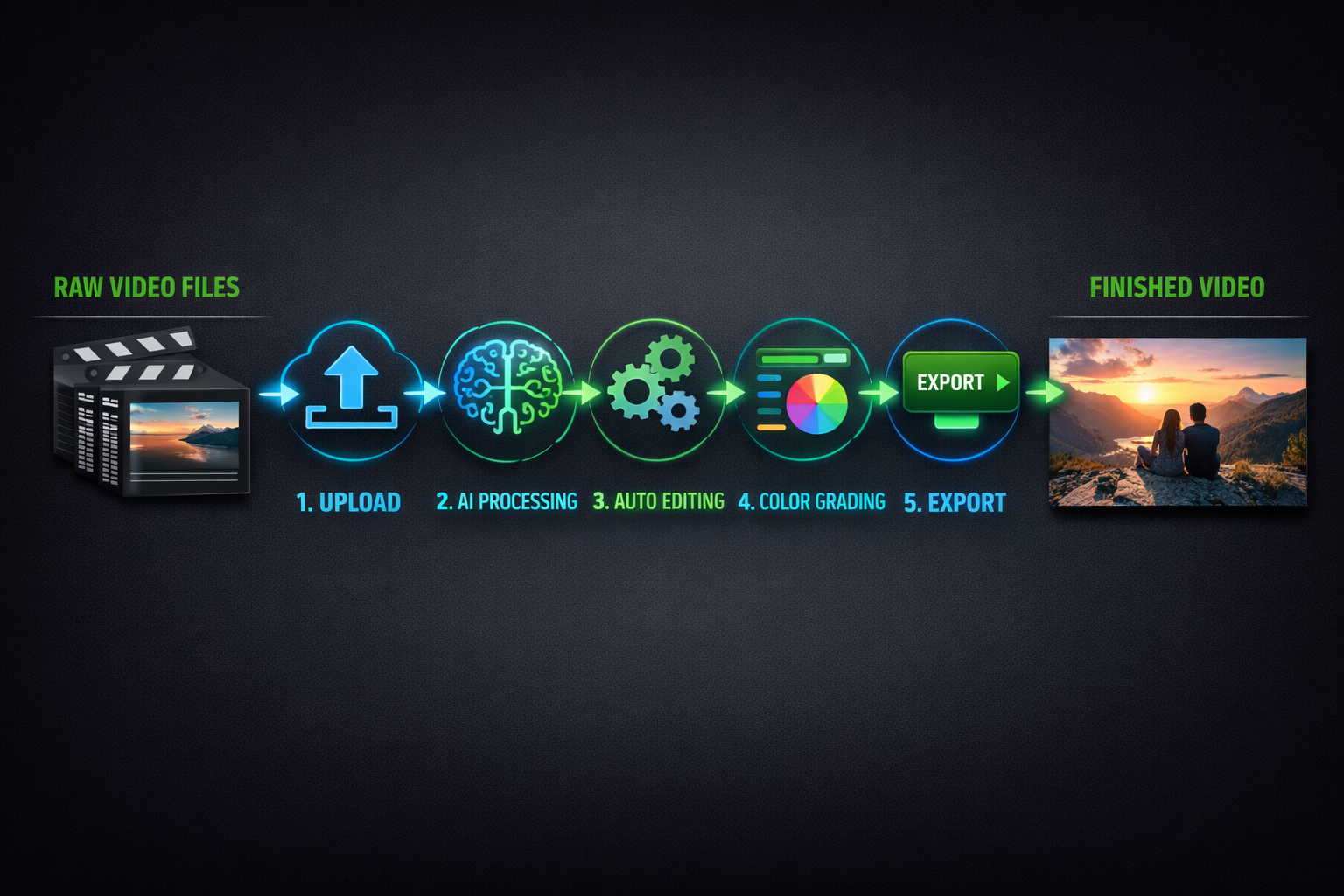
- Organize your raw files — Label clips, remove obvious unusable footage (lens caps, accidental recordings) before uploading.
- Upload to your chosen AI editor — Most tools accept MP4, MOV, and MKV formats.
- Run the auto-edit or “magic edit” feature — This varies by tool but is usually a single button or menu option.
- Review the AI’s output — Watch the edited version at 1.5x speed and note anything that feels off.
- Make manual corrections — Fix pacing issues, adjust cuts around key moments, and verify captions are accurate.
- Export in the correct format — Choose resolution and aspect ratio based on your target platform.
- QA check before publishing — Watch the final export fully before posting, especially if captions or subtitles were auto-generated.
Pro tip: Run a short 2–3 minute test clip through the AI editor before committing your full raw footage. This lets you evaluate quality without wasting time on a long upload.
FAQ
Q: Can AI video editors handle 4K raw footage automatically? A: Yes, most major tools including Descript, Runway ML, and Adobe Premiere Pro support 4K input. Processing time will be longer, and some free tiers limit export resolution to 1080p.
Q: How long does AI auto-editing take? A: For a 10-minute clip, most AI editors complete initial processing in 2–8 minutes, depending on server load and footage complexity. Longer projects scale proportionally.
Q: Is AI-edited video quality good enough for professional use? A: For social content, tutorials, and marketing videos, yes. For broadcast, film, or high-end commercial work, AI editing is a starting point that still requires significant manual refinement.
Q: Do AI video editors keep my footage private? A: Privacy policies vary. Most cloud-based tools store footage on their servers temporarily. Check each tool’s data retention policy before uploading sensitive or proprietary content.
Q: Can I use AI to edit footage I shot on my phone? A: Yes. Phone footage (MP4/MOV) works with all major AI editors. Audio quality from phone mics can limit how well silence detection and cleanup features perform.
Q: What’s the cheapest way to automatically edit raw footage with AI? A: CapCut’s free tier offers the most auto-editing features at no cost. Descript’s free plan is more limited but still useful for short projects.
Q: Will AI editing replace human video editors? A: Not for complex, narrative-driven work. AI handles repetitive technical tasks well, but creative judgment, storytelling, and brand alignment still require human oversight in 2026.
Q: Can AI editors automatically add music to my footage? A: Yes. Tools like CapCut and Runway ML include royalty-free music libraries and can auto-sync cuts to beat. Always verify licensing terms before publishing commercially.
Conclusion
The question of what AI video editor can automatically edit your raw footage has a clear answer in 2026: several tools can do it, and they’re genuinely useful. FlexClip stands out as the best option for beginners and marketers who want fast, professional-looking videos without learning complex editing tools. Descript leads for spoken content, CapCut AI wins for speed on social clips, Trupeer is the go-to for screen recordings, and Runway ML gives the most creative control for cinematic work.
Your next steps:
- Pick one tool that matches your primary footage type (use the table above).
- Run a short test clip through the free tier before paying.
- Review the AI output critically — fix pacing and verify captions.
- Build a repeatable workflow so each project gets faster.
AI won’t replace your creative judgment, but it will handle the tedious parts of editing so you can focus on what actually matters: making content worth watching.
References
- Descript product documentation and feature pages, Descript.com (2024)
- Runway ML official feature announcements, Runwayml.com (2024)
- Adobe Premiere Pro AI features overview, Adobe.com (2024)
- CapCut AI editing features, CapCut.com (2025)